To translate a YouTube video, turn on subtitles with the CC button, open Settings (the gear), choose Subtitles/CC, then Auto-translate, and pick your language. The subtitles switch to that language and stay timed to the video.
Step by step, in a browser
- 1
Turn on subtitles
Start the video and click CC in the player. If there is no CC button, the video has no subtitles, and there is nothing to translate.
- 2
Open Settings
Click the gear in the player and choose Subtitles/CC.
- 3
Choose Auto-translate
It sits at the end of the list of subtitle tracks.
- 4
Pick your language
The list covers most languages, Albanian, German and Turkish among them. The subtitles now show in that language.
In the YouTube app, the subtitles are under the same gear in the player. If your phone does not offer Auto-translate there, open the video in a browser on a computer and follow the steps above.
When Auto-translate is not there
- The video has no subtitles at all. No CC button, no translation.
- The video is new and the automatic captions are not ready yet. That can take minutes or hours.
- The language is not supported for automatic captions, and the creator uploaded none.
Some videos also have a second audio track in another language, under Settings and Audio track. That is dubbing the creator added, and it only shows up when they did.
How good the translation is
Auto-translate is machine translation of the subtitle text. When the subtitles are the creator’s own, the result is usually readable. When they are automatic, two sets of mistakes stack up: a misheard word turns into a mistranslated one. Names, slang and dialect suffer most, and a video that switches language mid-sentence comes out patchy.
That is fine for following a tutorial or the news. For anything you plan to quote, check it against the original.
If it is your video
Creators can do a lot better than auto-translate, and viewers notice. There are two routes, and they work well together.
- 1
A subtitle track per language
In YouTube Studio, open Subtitles, choose the video, add a language and upload a subtitle file for it. Viewers who pick that language get your translation instead of the machine’s.
- 2
The translation burned into the picture
On Shorts, TikTok and Reels, and in any clip shared as a file, viewers cannot pick a track. Subtitles in the picture are the only ones that travel with the clip.
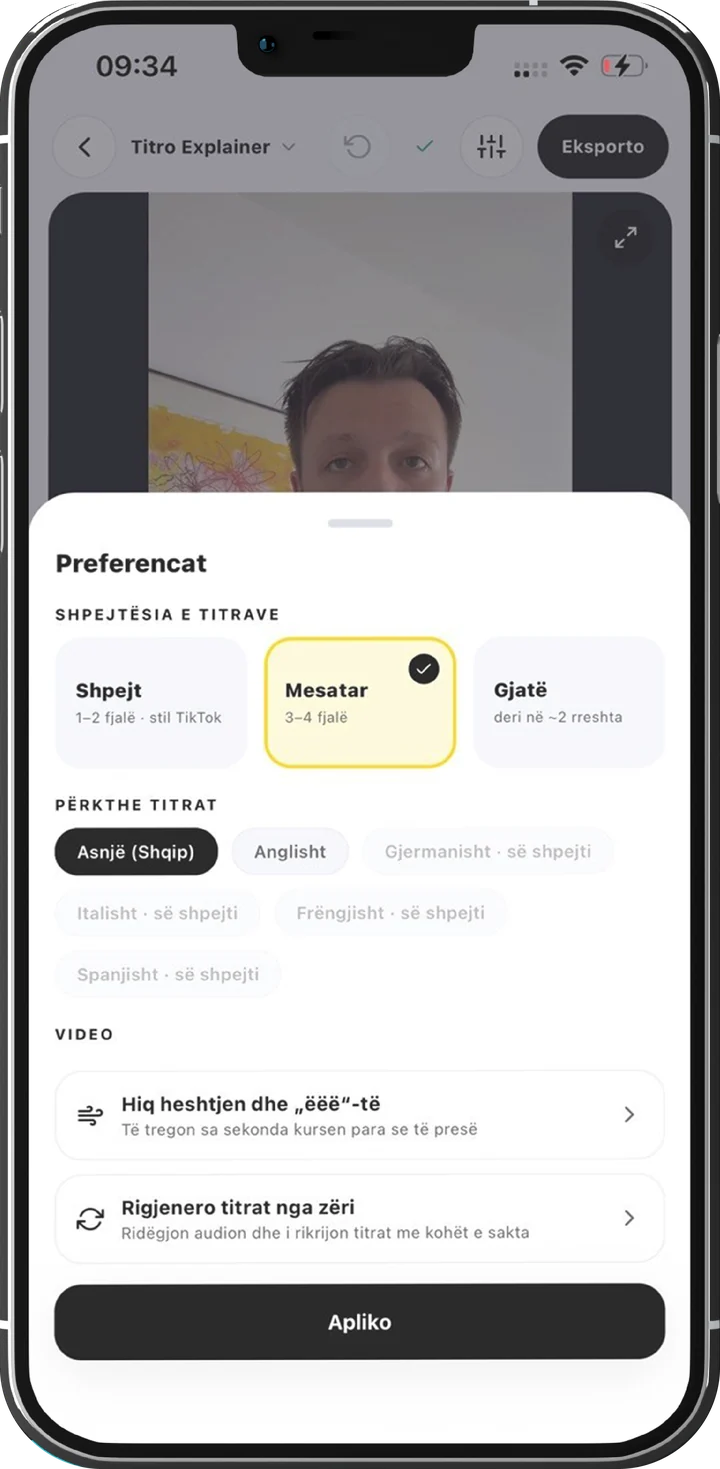
Titro does both from one upload. It writes the subtitles from your voice and translates them between any two of its six languages: Albanian, English, German, Italian, French and Turkish. The translation is made from the speech, so the lines stay timed to what you said. Every translated line opens in the editor, so you can fix a phrase before you export it burned in, or download it as an .srt from Titro Studio for YouTube. The details are on the video subtitle translator page, and the upload route into English on translate video to English.
Which one to use
| You want | Use |
|---|---|
| To follow someone else’s video in your language | Auto-translate in the player |
| The same, but the video has no subtitles | An audio track in your language, if the creator added one |
| Viewers abroad to follow your long videos | A translated subtitle track per language in YouTube Studio |
| Your Shorts and Reels understood in a second language | Translated subtitles burned into the video |
For viewers, a few clicks. For creators, one upload and a read through the translated lines. Your first Titro video is free.