Home Subtitle editor

Words, timing, lines on the phone and in the browser

A subtitle editor where the timing is already done.

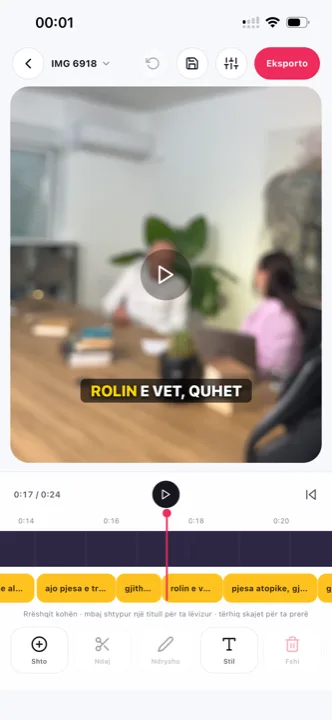
A subtitle editor in Titro opens on subtitles that already exist: you upload the video, Titro writes what was said with a time on every word, and the editor is where you fix the words, the timing and the line breaks. One thing to know first: Titro does not open an .srt file you already have. It edits the subtitles it made from your video, and gives you a fresh .srt when you are done.

From €4.99/month
Or work on the web →

Subtitle editor in Titro: captions on the video with the timeline below
why

What you can change in the subtitle editor.

01 Words

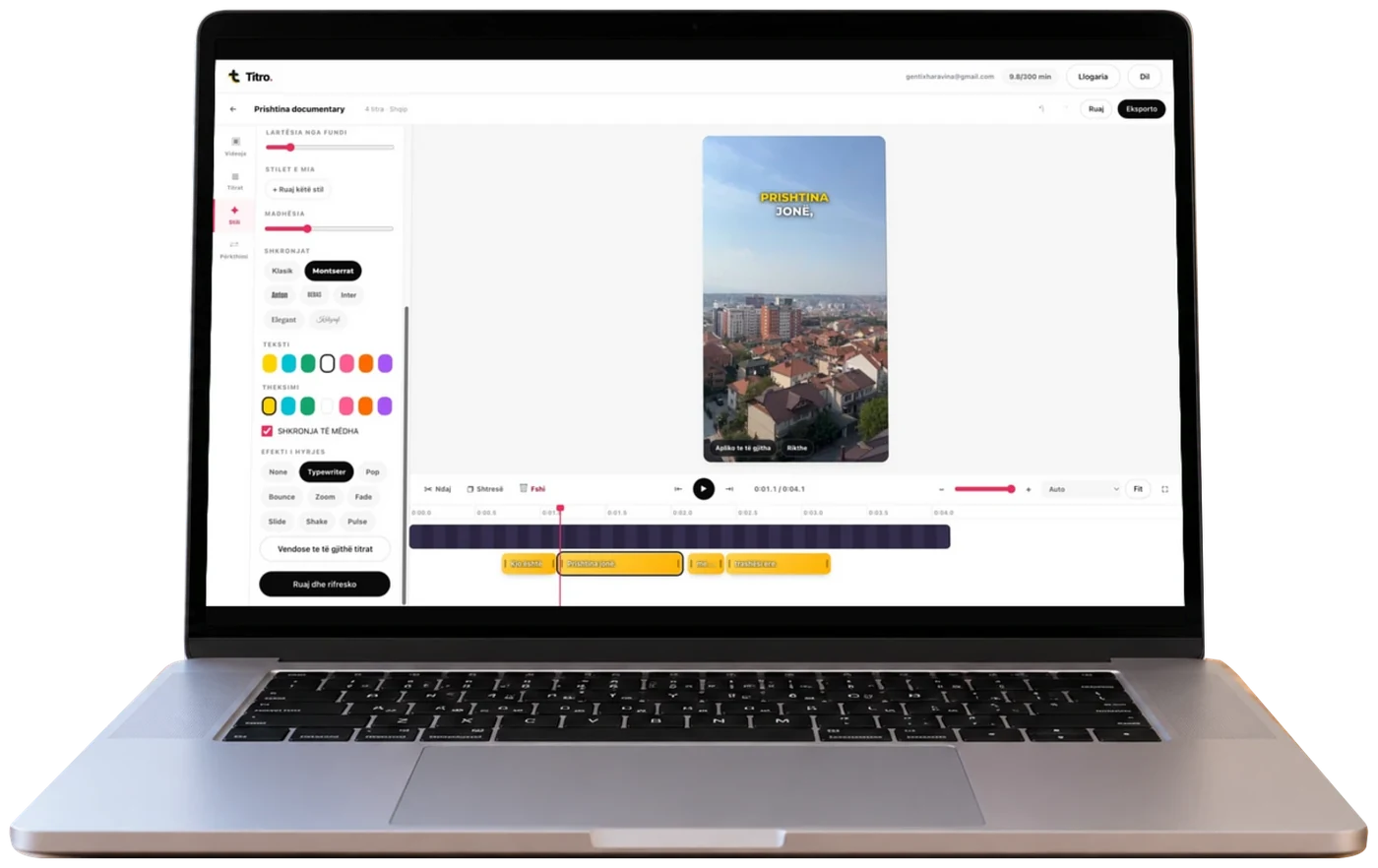
Tap a caption and type the correction. In Titro Studio you can also search the captions for a word, which is the quick way to find a name the speech recognition heard wrong. Select a word and make it bold to mark the one that matters.

02 Timing

Drag the edges of a caption on the timeline to make it start or end earlier or later. Press and hold, or drag the caption itself, to move it as a whole. Fixing a word does not touch the timing, so the subtitle stays where the voice is.

03 Lines

A caption that runs too long can be split: put the playhead where the break should go and tap Split, or press S in Titro Studio. You can add a caption of your own, add a free text layer for a title, or delete what you do not need. Every change can be undone.

04 Look and speakers

Pick one of the presets, then change the font, size, colours, the highlight on the spoken word, the background and the outline. Drag a caption where you want it on the picture. In interviews, each speaker gets a name and a colour, and the names travel into the .srt.

steps

How to edit subtitles in Titro.

01

Upload the video

In the iPhone or Android app, or in Titro Studio at app.titro.live. Choose the spoken language, the caption length and, if you want it, a translation, before you upload.

02

Open the editor

A short video comes back in about twenty seconds with every word timed. Play it once and note what needs fixing.

03

Fix words, timing and lines

Correct the words, drag the edges of any caption that comes in early or late, and split the lines that are too long to read.

04

Export

Export the video with the subtitles burned in, at up to 1080p, or download the .srt from Titro Studio for YouTube or your video editor.

in practice

Editing subtitles and .srt files, in practice.

Editing an .srt file you already have

An .srt is plain text, so any text editor opens it: Notepad on Windows, TextEdit on a Mac. Each subtitle is a number, a time line such as 00:00:01,000 --> 00:00:03,500, one or two lines of text and an empty line. Keep the comma before the milliseconds and the arrow exactly as they are, and save the file as UTF-8 so letters like é, ë and ç survive. If the file belongs to a video in one of Titro’s languages and the timing is a mess, it is often faster to upload the video to Titro and let it write the subtitles again than to repair every line.

The order that saves work

Some settings rebuild the subtitles from the audio: the spoken language, the translation and the caption length. Changing one of them later throws away manual edits, and the app asks before it does. Decide those three before you start correcting, then edit once.

Names that come back wrong every time

Turn on My words and Titro remembers the corrections you repeat, so the same name or brand is spelled right in the next video. How it works is in the My words guide, and every editing step with the exact button names is in the guide to editing captions.

What the editor does not do yet

Two captions cannot be joined into one yet: edit the words of the first and delete the second. The subtitles are exported as .srt, not .vtt; most platforms accept .srt directly. And the video carries one language at a time on screen, so a translated version is a second export from the same project.

Editing translated subtitles

When a video is translated, the translation opens in the same editor. In Titro Studio the original stays visible as a read-only lane next to it, so you can compare line by line. Export gives you both .srt files. The translation side is covered on the video subtitle translator page, and the file itself on the SRT file generator page.


questions

What you should know.

Can I upload an .srt file and edit it in Titro?

No. Titro edits the subtitles it writes from your video. To change an existing .srt, open it in a text editor, or upload the video and let Titro write new subtitles.

Can I change when a subtitle appears?

Yes. Drag the edges of the caption on the timeline, or drag the whole caption to move it.

Can I split a long subtitle?

Yes. Put the playhead inside it and tap Split, or press S in Titro Studio.

Can I merge two subtitles?

Not yet. Edit the words of one and delete the other.

Does correcting a word change the timing?

No. The timing stays where the voice is.

Can I export the edited subtitles as a file?

Yes, as an .srt from Titro Studio. VTT is not available yet.

Is the subtitle editor free?

Your first video is free up to three minutes, with no card and a small Titro mark. After that, Creator is €4.99 a month for 300 minutes.

also

Subtitles for everywhere you post.

Upload a video and edit its subtitles.

The timing is done for you. Fix the words, split the long lines, export.

Titro Studio open on a laptop, with subtitles over a video