Home iMovie subtitles

No auto captions in iMovie two ways around it

iMovie subtitles: what iMovie can’t do, and the fix.

iMovie does not make subtitles for you. Neither iMovie for Mac nor iMovie for iPhone and iPad has automatic captions, and neither can import an .srt file. You have two ways to add subtitles to an iMovie project: type each line as a title by hand, or finish the edit, export the film and upload it to Titro, which writes the subtitles from the speech, times every word and burns them into the video.

From €4.99/month
Or work on the web →

Adding subtitles to an iMovie export in Titro: the caption editor on the video
why

Why subtitles in iMovie take so long.

01 Titles are not subtitles

iMovie’s Titles are made for a heading or a name on screen. Used as subtitles, each line is a separate title you type and time by hand. A three-minute talking video has 80 to 100 lines, which is about an hour of work.

02 On iPhone and iPad, a title fills the clip

In iMovie on iPhone and iPad, a title stays on for the whole clip. To change the line, you split the clip at that point and add a new title, over and over. On the Mac, titles sit above the clip and you drag their edges to set when each one starts and ends.

03 No .srt import

A subtitle file made elsewhere cannot be loaded into iMovie. If you already have an .srt, it has to be typed in again line by line, or the subtitles have to be burned into the video outside iMovie.

04 The fix: subtitle the export

Finish the cut in iMovie, export it, and upload the file to Titro. The subtitles come back timed to every word in about twenty seconds for a short clip, and the export comes out at up to 1080p.

steps

How to add subtitles to an iMovie video with Titro.

01

Finish the edit in iMovie

Cut, music, titles for headings: everything except the subtitles. Burned-in subtitles belong to the final cut, so do them last.

02

Export the film

On a Mac, use Share and then Export File. On iPhone or iPad, tap the share button and Save Video. Both give a normal video file.

03

Upload it to Titro

In the iPhone or Android app, pick the video from your library, or upload it in Titro Studio at app.titro.live. Choose the spoken language and how many words show at once.

04

Check, style, export

Tap any word to fix it, pick a caption style and export. The video comes back with the subtitles burned in, ready for YouTube, Reels or TikTok.

in practice

iMovie subtitles, in practice.

Typing subtitles in iMovie, if you want to

For a few lines, iMovie’s own titles are fine. On a Mac, drag a lower-third title above the clip in the timeline, type the line, and drag the title’s edges to match the speech. On iPhone or iPad, select the clip, tap Titles, choose a style and type; to change the line, split the clip with Split and add the next title. Pick one plain style and stick to it, so every line sits in the same place.

How Titro’s subtitles differ

Titro listens to the audio and writes every word with its own timestamp, so each line appears and disappears with the voice. Most presets highlight the word being spoken, and you can change the font, colour, position and size. When two people speak, each gets a name and a colour. Burned-in subtitles stay in the picture wherever the video goes.

When you need a file, not burned-in text

For YouTube, Titro Studio also downloads the subtitles as an .srt that you upload next to the video. iMovie still cannot import it, but YouTube and most other video editors can. If you want subtitles you can edit inside an Apple editor, Final Cut Pro imports caption files, iMovie does not. More on the file is on the SRT file generator page.

Mac or phone

Edited on a Mac? Upload the export in Titro Studio in Safari or Chrome. Edited on an iPhone? Use the Titro app on the same phone, and the video goes from iMovie to Titro to Instagram without leaving it. Files up to 1.5 GB work, and on Creator a video can be up to 60 minutes long.

What it costs

Your first video is free up to three minutes, with no card and a small Titro mark. After that, Creator is €4.99 a month for 300 minutes. Why typing subtitles by hand takes so long, step by step, is in how long it takes to subtitle a video.


questions

What you should know.

Does iMovie have automatic captions?

No. iMovie for Mac, iPhone and iPad has no automatic captions. You can type titles by hand or subtitle the exported video in a tool like Titro.

Can I import an .srt file into iMovie?

No. iMovie cannot import subtitle files. Final Cut Pro can, and YouTube accepts an .srt next to the video.

How do I add subtitles in iMovie on iPhone?

Select a clip, tap Titles and type the line. A title lasts the whole clip, so split the clip wherever the line should change.

What is the fastest way to subtitle an iMovie video?

Export the finished film and upload it to Titro. A short clip comes back with word-timed subtitles in about twenty seconds.

Will exporting from iMovie lower the quality?

Export at the resolution you edited in. Titro keeps that resolution up to 1080p when it burns the subtitles in; a 4K file comes out at 1080p.

Can I edit the subtitles afterwards?

Yes, in Titro: fix words, change timing, split long lines, change the style. Re-export when you are done.

Is it free?

The first video is free up to three minutes, with no card and a small Titro mark.

also

Subtitles for everywhere you post.

Try it on your next video.

Upload it now and see it finished before your coffee’s done.

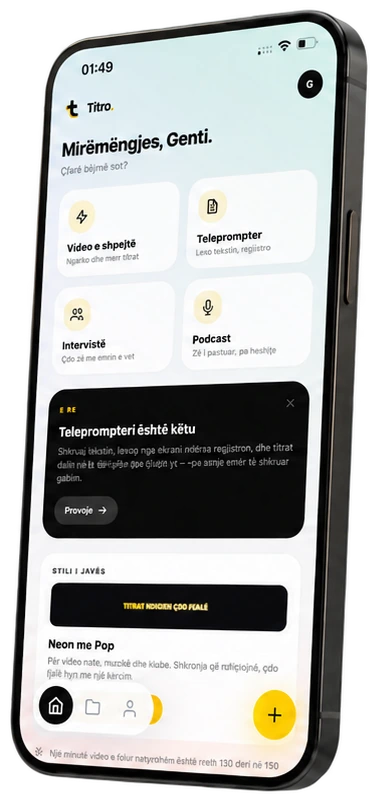
Titro on a phone, showing the home screen and subtitle tools