Home DaVinci Resolve subtitles
Studio only for automatic subtitles in Resolve 21
DaVinci Resolve can make subtitles automatically, but only in the paid version. Blackmagic’s manual marks Create Subtitles from Audio as Studio Version Only, and the same goes for AI Animated Subtitles, the word-highlight styles. The free version of DaVinci Resolve still handles subtitles: you can type them by hand, import an .srt file, and export subtitles or burn them into the video. This page covers both versions and a third route: get the subtitles from Titro, as an .srt for Resolve or burned into the export.
From €4.99/month
Or work on the web →
In DaVinci Resolve Studio, the DaVinci Neural Engine listens to the timeline and writes a subtitle track, with punctuation and capitalised names. Blackmagic sells Studio 21 for $295 on its site.
AI Animated Subtitles are Fusion title templates in the Titles tab, such as Word Highlight, that highlight each word as it is spoken. You drag one onto the subtitle track header. They are also Studio only.
The free version has subtitle tracks, the Captions panel for typing, and Import Subtitle for an .srt file. It works with video up to Ultra HD 3840 x 2160 at 60 frames per second.
On the Deliver page, subtitles can be written as a separate file (SRT, WebVTT, IMSC1 or DFXP), burned into the video, or embedded as captions in supported formats. File > Export Subtitle also saves .srt or .vtt.
Set an In and Out range if you only want part of the timeline subtitled, or leave it blank for the whole thing.
Select Timeline > AI Tools > Create Subtitles from Audio. On the Cut page, the same command is under the Timeline Actions icon.
Pick the spoken language, or Auto, a caption preset, the maximum characters per line, one or two lines, and the gap between subtitles. Then click Create.
The subtitles land on the highest subtitle track. Read them through and correct names and terms in the Captions panel or with find and replace in the Subtitle Inspector.
Out of the box, Blackmagic’s manual lists 14 languages for Create Subtitles from Audio, among them English, French, German, Italian, Spanish, Portuguese, Dutch, Russian, Japanese, Korean and Mandarin. An Extended AI Transcription Support Package, in the Extras Downloads Manager, adds many more, Turkish among them. Albanian is in neither list. Titro writes subtitles in Albanian, English, German, Italian, French and Turkish, including sentences that switch between them.
Blackmagic itself names the common failure: overlapping dialogue on several audio tracks. The workaround is to mute the tracks you do not want analysed before you start. Music under the voice and unusual names are the other places to check line by line.
If you edit in the free version, upload the finished video to Titro Studio and download the subtitles as an .srt. Every word is timed, and speaker names go into the file when more than one person talks. In Resolve, right-click in the Media Pool, choose Import Subtitle, and drag the clip onto a subtitle track. Style it in the Inspector and deliver it burned in or as a file. More on the format is on the SRT file generator page.
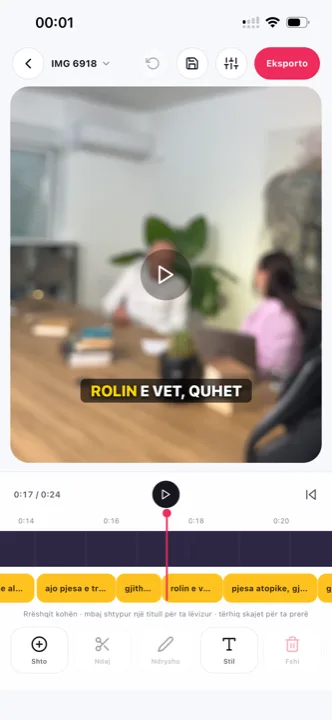
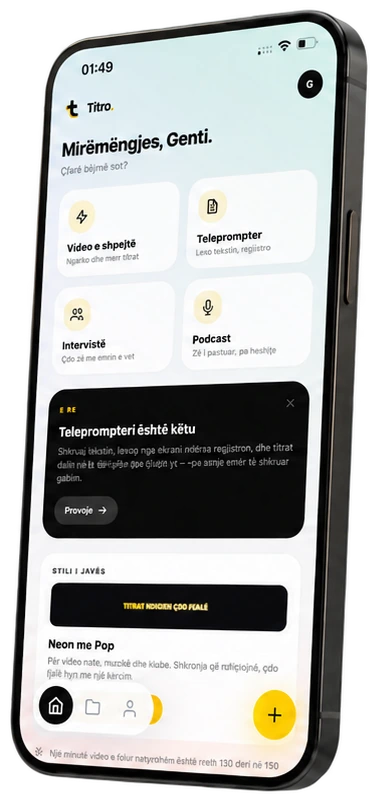
For a talking video going to TikTok, Reels or Shorts, render the cut without subtitles and upload it to Titro, on the web or in the iPhone and Android app. Titro burns the subtitles into the picture in one of 15 presets, with the highlight following the spoken word, 8 fonts, 9 entrance effects and 7 highlight colours. You fix any word with a tap before export. Titro exports at up to 1080p: a 1080p render keeps its resolution and a 4K render comes back at 1080p, with the audio copied untouched. For a 4K delivery, use the .srt route above and burn the subtitles in Resolve.
Resolve’s free version costs nothing and Studio 21 is $295 on Blackmagic’s site. Titro’s first video is free up to three minutes, with no card and a small Titro mark. Creator is €4.99 a month for 300 minutes, with no mark on exports. How long each route takes by hand is in how long it takes to subtitle a video.

No. Blackmagic’s manual marks Create Subtitles from Audio as Studio Version Only. The free version can import an .srt file and lets you type subtitles by hand.
On the Edit page, choose Timeline > AI Tools > Create Subtitles from Audio, set the language and line options, and click Create.
Yes, in both versions. Right-click in the Media Pool, choose Import Subtitle, and drag the subtitle clip onto a subtitle track.
On the Deliver page, turn on Export Subtitle in the video settings and set the format to Burn into video.
Albanian is not in the languages Blackmagic lists for Create Subtitles from Audio. Titro writes Albanian subtitles and exports an .srt you can import into Resolve.
No. AI Animated Subtitles are marked Studio Version Only in the manual.
Up to 1080p. Videos up to 1080p keep their resolution, and 4K videos come out at 1080p.
Vendor pricing and help pages first; a third-party source only where the vendor publishes no page. If something has changed, write to support@titroshqip.com and we will correct it.
Upload it now and see it finished before your coffee’s done.