Home Teleprompter for iPad

Safari on iPad speeches, rigs and video calls

A teleprompter for iPad that runs in Safari.

An iPad makes a good teleprompter screen: big enough to read from a distance, light enough to sit on a lectern or under the glass of a rig. Titro’s free online teleprompter runs in Safari on any iPad, so there is nothing to install from the App Store. Paste the script, set the speed and the text size, turn on Mirror if the iPad sits under a beam-splitter, and press start.

From €4.99/month
Or work on the web →

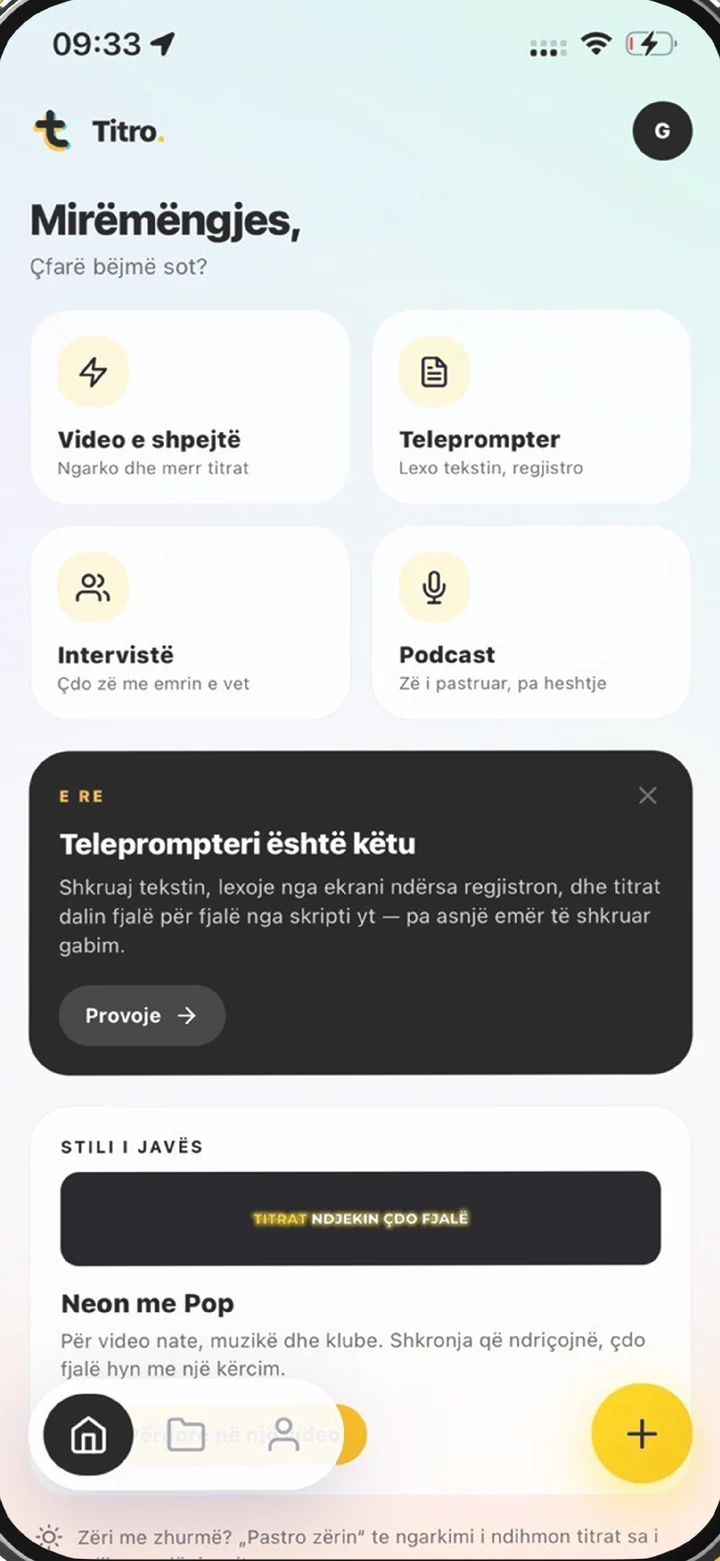
Teleprompter for iPad: the Titro home screen with the Teleprompter tile
why

What an iPad teleprompter is good for.

01 Under the glass of a rig

Most teleprompter rigs are built for a tablet: the iPad lies under a sheet of glass in front of the camera lens, and the text bounces up into view. Switch on Mirror and the reflection reads the right way round.

02 On a lectern for a speech

Large text, a slow start and a tap on the text to pause during applause. The iPad screen is wide enough that you can stand back from it and still read every line.

03 Next to the camera or the laptop

Prop the iPad beside a camera on a tripod, or next to a laptop for a video call, and read your opening and your key numbers without looking down at notes.

04 Nothing installed, nothing uploaded

The prompter is a web page. The script stays in Safari on that iPad and is not sent anywhere. It is still there the next time you open the page, with your speed and text size.

steps

How to use the teleprompter on an iPad.

01

Open the prompter in Safari

Go to titro.live/online-teleprompter on the iPad. A short sample script is already in the box, so you can try it first.

02

Paste the script and set it up

Paste the text, set the speed in words per minute and choose Small, Medium or Large text. Turn on Mirror only for a beam-splitter rig.

03

Stop the screen from locking

In Settings, Display & Brightness, set Auto-Lock to Never while you read. A long take with no touches can otherwise lock the screen halfway through.

04

Press start and read

A 3-2-1 countdown runs, then the text scrolls. Tap the text to pause, use the buttons on screen to go ten words per minute slower or faster, and close when you are done.

in practice

The iPad as a prompter, in practice.

Building a rig around an iPad

A beam-splitter rig is a hood with a sheet of glass at 45 degrees in front of the lens and a tray for the iPad below it. The camera films through the glass while you read the reflection. Lay the iPad face up in the tray, turn on Mirror, choose Large text and set the pace before you step in front of the lens. With a keyboard connected, Space pauses, the arrow keys change the speed and Esc closes the prompter, so you never have to reach into the rig.

Speed and text size

Speed goes from 60 to 260 words per minute and starts at 140, which is close to how people talk. For a speech in a room, start a notch slower than feels right: nerves make everyone faster. Large text suits a lectern or a rig at arm’s length, and Medium suits an iPad propped close to you. The guide on how to read a teleprompter covers pace and eye line.

Recording yourself on the iPad

The browser prompter scrolls your script and does nothing else: it does not record or caption. If you want one device that shows the script and records the take, the Titro app does that on an iPhone or an Android phone, with the script by the front camera and the captions written afterwards from what you said. That is described on the teleprompter app for iPhone page.

Captions for what you recorded

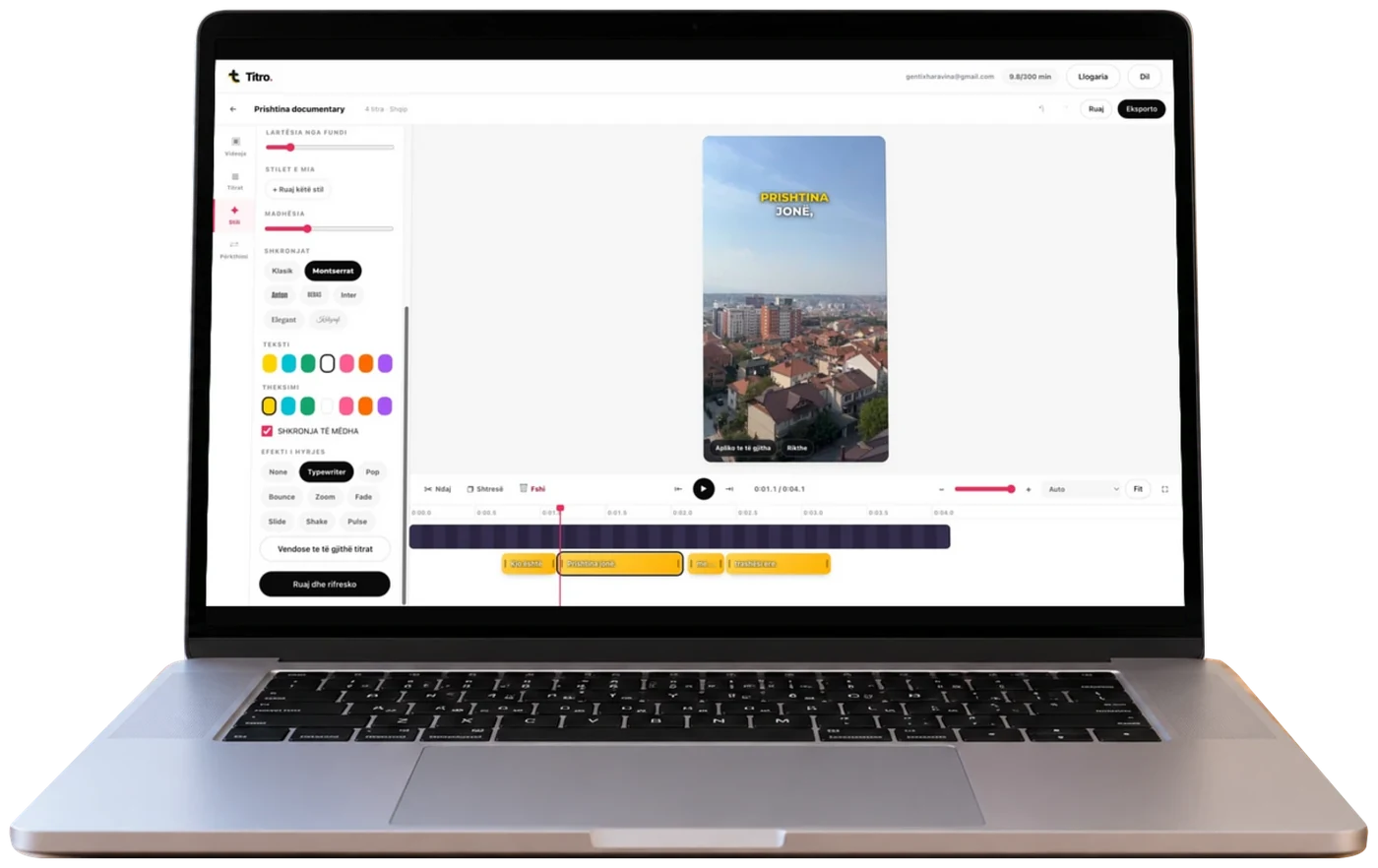
Whatever camera filmed the take, you can upload the file to Titro Studio in Safari on the iPad or on a computer. Titro writes the captions from your voice, times each word, and exports the video with the captions burned in, or as an .srt. The first video is free up to three minutes, with no card and a small Titro mark.

The same prompter on other screens

The page works the same way on a Mac, a Windows laptop or a phone. If the iPad is not with you, see the teleprompter for Mac or teleprompter for Windows pages, and for calls, the teleprompter for Zoom page.


questions

What you should know.

Is there a free teleprompter for iPad?

Yes. Titro’s online teleprompter runs in Safari on any iPad, free, with no account and no watermark.

Do I need to install an app?

No. It is a web page. Open titro.live/online-teleprompter in Safari and paste your script.

Can I mirror the text for a teleprompter rig?

Yes. Turn on Mirror before you start, and the text reads correctly in the glass.

Why does my iPad screen lock while I read?

Auto-Lock turns the screen off when nothing is touched. Set it to Never in Settings, Display & Brightness, before a long read.

Can I control it with a keyboard?

Yes. Space pauses, the up and down arrows change the speed by ten words per minute, and Esc closes the prompter.

Does it record video?

No. It only scrolls the script. Record with the camera you use, and upload the take to Titro Studio for captions.

Is my script uploaded?

No. It stays in Safari on that iPad.

also

Subtitles for everywhere you post.

Open the prompter on your iPad.

Free in Safari. Paste the script, set the speed, turn on Mirror for a rig.

Titro Studio open on a laptop, with subtitles over a video