Home Add captions to video
4 steps upload, set options, check, export
To add captions to video you need three things: the words, the moment each word is spoken, and a way to put both on the picture. Titro does the first two by listening, and leaves you a short check and an export for the third.
From €4.99/month
Or work on the web →
Strictly, captions write down what is said for viewers who can’t hear it — deaf and hard-of-hearing viewers, and the much larger crowd scrolling with the sound off. Subtitles, strictly, are for viewers who can hear but don’t understand the language. On social media the two words are used for the same thing, and Titro produces both from one upload.
Open captions are burned into the picture: always on, the same on every platform, impossible to lose on a repost. Closed captions are a separate file the player shows on request. Titro exports open captions by default and, in Titro Studio on the web, closed captions as an .srt.
TikTok, Instagram, Facebook and YouTube can all generate captions for you. They are free and they stay on the platform: download or repost the video and they are gone, and their look and accuracy are the platform’s choice. Adding the captions yourself means they are right, styled your way and attached to the file.
Titro captions speech: every spoken word, timed, with speaker names when more than one person talks. It doesn’t describe non-speech sounds such as music or applause. If your audience needs those, the .srt is plain text, and a bracketed line can be added to it by hand.
In the iPhone or Android app, pick the video from your gallery or record it in the app. On a computer, open Titro Studio at app.titro.live and drag the file in. Vertical, horizontal or square, the format stays as it is.
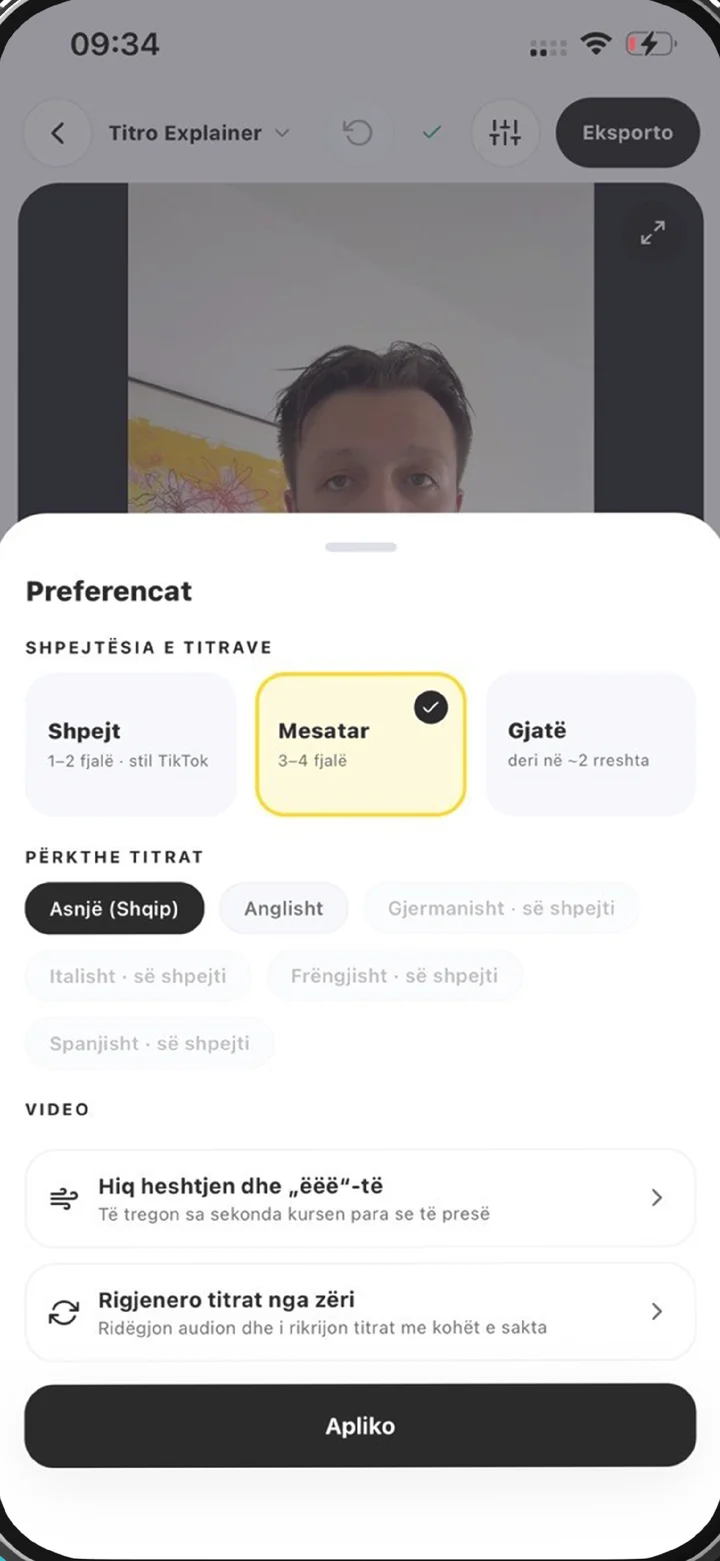
Choose how many words each caption shows (two or three read best on a phone), turn on audio cleanup if the recording is noisy, and say if more than one person speaks so each voice gets a name and a colour.
About twenty seconds later for a short clip, the captions arrive timed to each word. Read them through, tap any word to correct it, drag a caption off a face, split or merge lines, and pick a style.
Save the video with the captions burned in, at its original resolution, to your gallery or computer. If the player wants a caption file instead, download the .srt from Titro Studio.
This page is about captions — the words of the video, written for people watching without sound. Its sister page, add subtitles to a video, goes deeper into the craft that both share: where to place the text in each feed, how many words per line, fonts and contrast. If what you need is the video in another language, that is subtitling in the strict sense, and the video subtitle translator page covers it. The upload is the same in all three cases, so you don’t have to decide before you start.
A caption that is technically there but unreadable helps nobody. Keep captions short enough to read before they change — two or three words at a time in a vertical feed, a full line on a wide YouTube frame. Use a boxed style, or a thick outline, when the footage is bright; thin white text over a sunny sky disappears. Leave the speaker’s mouth and face visible, because some viewers who rely on captions also read lips and expressions. And when two people speak, name them: a caption that switches speakers without saying so is hard to follow even with the sound on.
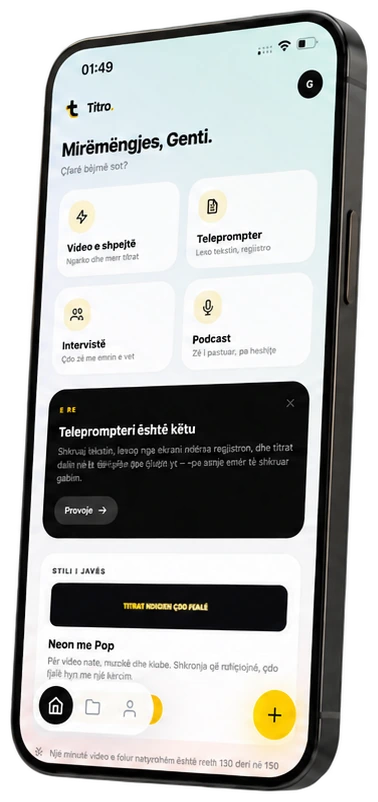
Open the Titro app, tap to upload, and choose the clip from your photo library — or record a new one inside the app. Set the options, wait for the captions, tap through the corrections and pick a style. Export saves the captioned video back to your photo library, ready to post from whichever app you use. The same flow works on Android, and the same account opens on the web when you would rather edit on a bigger screen. Recording from a script? The teleprompter on iPhone scrolls it near the lens while you record, and the captions still follow what you actually said.
Most platforms won’t let you burn captions into a video after it is live; you caption your original and post that version. On TikTok and Instagram that means a new upload — the step-by-step for TikTok is on how to add captions on TikTok, and for Facebook on captions for Facebook video. YouTube is the exception: you can attach an .srt to a video that is already published, without re-uploading it, which is covered on the YouTube subtitle generator page.
The first video is free up to three minutes, with no card; it carries a small Titro mark, which paid plans don’t. Creator is €4.99 a month for 300 minutes of video, up to 60 minutes per video. A daily one-minute clip uses about thirty minutes a month, leaving room for a long interview or two. Translation counts double, so a one-minute clip with a translated version uses two minutes. The plan can be cancelled any time.

Captions write down what is said for people who can’t hear the audio; subtitles translate it for people who don’t understand the language. Online the words are used interchangeably. Titro does both — the subtitle side is on add subtitles to a video.
Your first video in Titro is free up to three minutes, with no card; it carries a small Titro mark. The platforms’ own auto-captions are also free, but they stay on the platform and are styled by it.
Yes. The Android app works like the iPhone one: pick from the gallery or record, check the captions, save the video back to the gallery.
No. The video keeps its original resolution and the audio is untouched; only the captions are added to the picture.
Yes — up to 60 minutes per video on Creator and 180 on Studio. Long videos are easier to handle in Titro Studio in the browser.
Yes. Titro Studio on the web downloads the captions as an .srt file, which YouTube and most players accept as closed captions.
Titro captions English, German and Albanian, including sentences that mix them. Other languages aren’t supported.
Upload it now and see it finished before your coffee’s done.