Home Teleprompter for Windows
Edge or Chrome an autocue on the laptop you have
The easiest teleprompter for a Windows computer is a page you open in Edge or Chrome, not a program you install. Titro’s free online teleprompter turns any Windows PC or laptop into an autocue: paste the script, set the pace in words per minute and read. There is no Windows app to download, and the page works without one.
From €4.99/month
Or work on the web →
A work laptop often will not let you install software. A web page does not need permission: if the browser opens, the prompter runs. The same page works on Windows 10 and Windows 11, and on any other computer you sit down at.
Nothing you paste is uploaded. The page keeps your script, speed and text size in that browser, so a script you prepared yesterday is still there today, on that PC.
Most laptop webcams sit in the top bezel. The prompter puts its reading line about a third of the way down its window, so a narrow window pushed to the top of the screen keeps your eyes close to the lens while you read.
It is not a recorder or a video editor. It scrolls text, and you record with the Camera app, your webcam software or the camera on a tripod. If you want the recording captioned afterwards, that is what Titro Studio does, in the same browser.
Go to titro.live/online-teleprompter in Edge or Chrome. Replace the sample text with your script.
Start around 140 words per minute and pick Small, Medium or Large text. A laptop at arm’s length usually reads best at Medium.
For a webcam take, shrink the window and place it at the top of the screen under the camera. For a lectern or a rig, press F11 for full screen.
Press start and a 3-2-1 countdown runs. Space pauses, the up and down arrows change speed by ten words per minute, Esc exits.
With a second monitor, put the prompter on the screen the camera is mounted on, and keep your notes or the recording app on the other one. Drag the browser window across, then press F11 on that screen. The keyboard controls act on whichever window was clicked last, so click the prompter once before you press start.
If you are building a rig with a sheet of glass in front of the camera, the laptop or a monitor connected to it lies under the glass and the text bounces up into view. Turn on Mirror before you start so the reflection reads the right way round, pick Large text, and set the pace before you stand in front of the lens. More on how rigs and software fit together is on the teleprompter software page.
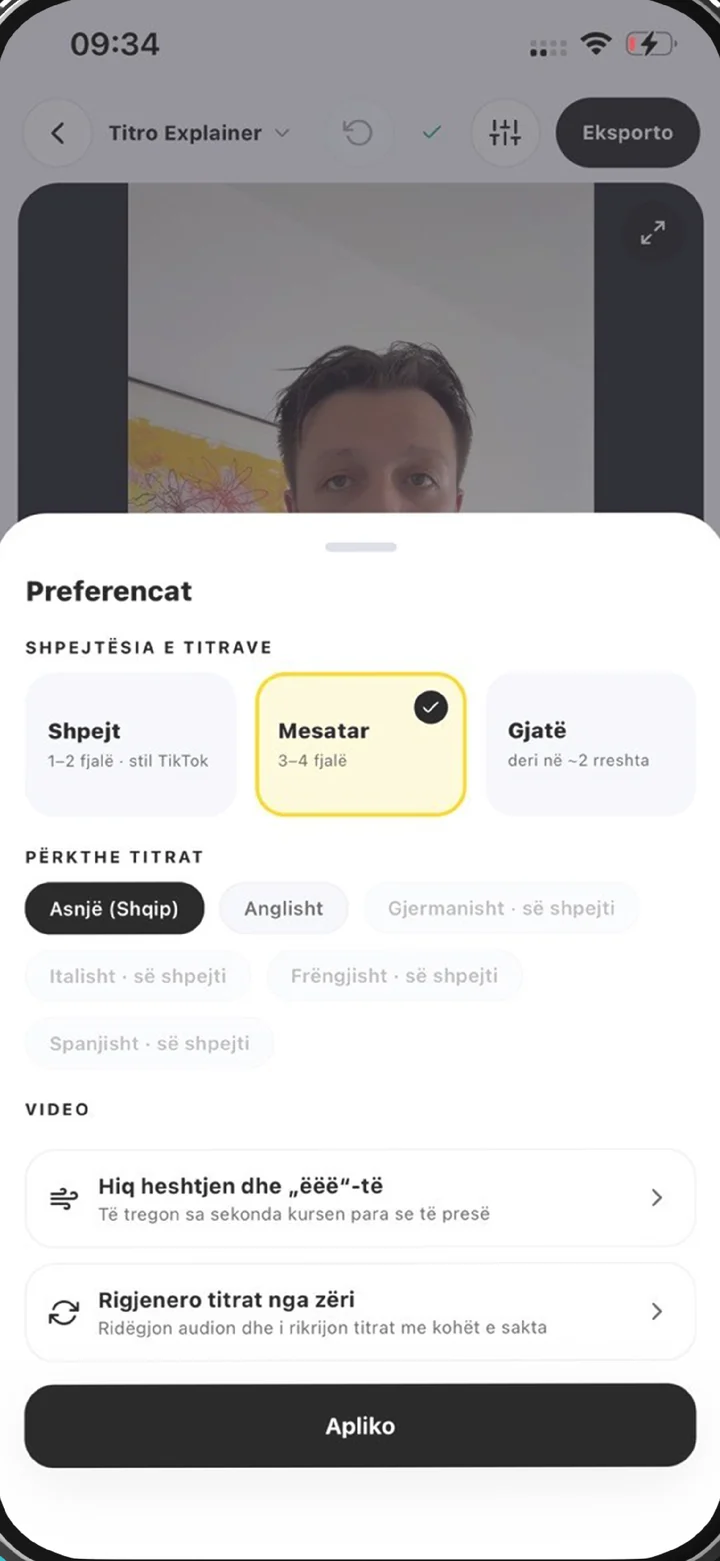
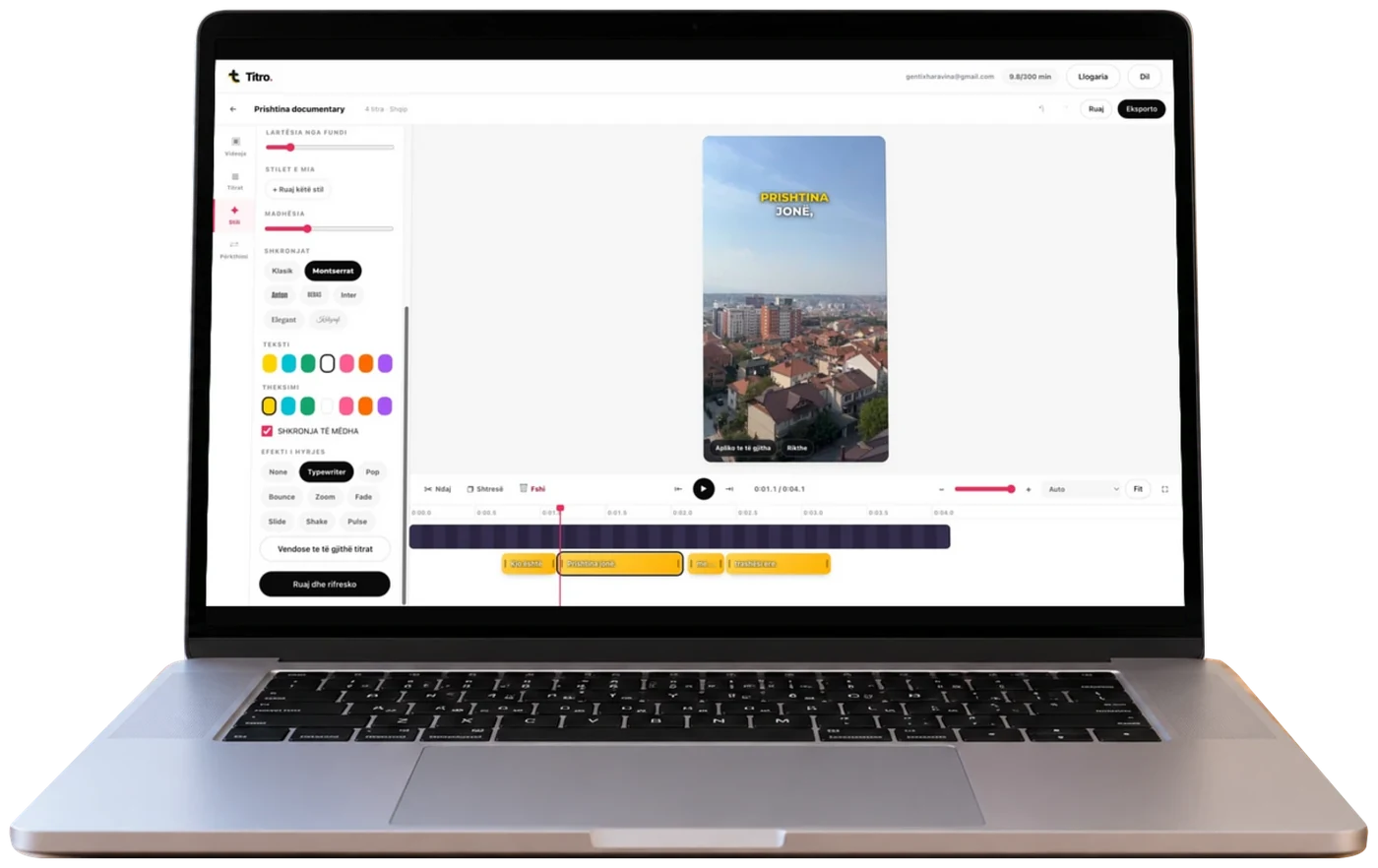
Record however you normally do on Windows, then upload the file to Titro Studio. Titro writes the captions from what you said, each word timed to your voice, and you can export the video with captions burned in or download an .srt. MP4, MOV, MKV, WebM and AVI files are accepted, up to 1.5 GB.
The Titro app for iPhone and Android has the prompter inside the camera: the text scrolls under the front lens while the phone records, and the take is captioned in the script’s language, with names spelled the way you wrote them. See the teleprompter app for Android page.
The browser prompter is free: no account, no watermark, no time limit. Captions are a separate step. The first video is free up to three minutes, with no card and a small Titro mark, and Creator is €4.99 a month for 300 minutes after that.

No. There is no Windows program. The teleprompter is a free web page that runs in Edge or Chrome on any Windows PC or laptop.
Yes. Place a narrow prompter window at the top of the screen, under the webcam, and read from the line.
No. Nothing is installed. If the browser opens, the prompter works.
Press F11 in Edge or Chrome. Press F11 again to leave full screen, and Esc to close the prompter.
No. It only scrolls the script. Record with your usual app, then upload the file to Titro Studio for captions.
Yes. Switch on Mirror before you start, for a laptop or monitor under a beam-splitter glass.
Yes, the browser teleprompter is free, with no account and no watermark.
Open the free prompter in Edge or Chrome and paste your script.