Watch a raw talking video back and you notice two things: the seconds before you start speaking, and the hesitation sounds in the middle. Cutting them by hand means scrubbing a timeline and then fixing every subtitle that moved. Titro can remove filler words from video and remove silence from video in one step, and it moves the captions for you.
Why Titro can cut by the word
When Titro writes your subtitles, it records a start and an end time for every single word. The gaps between those words are therefore already known to the hundredth of a second. Finding the pauses doesn’t need a second analysis of the audio. They are the spaces in data Titro already holds, which is why the proposal appears straight away.
What counts as a pause
The rules are deliberately cautious. A cut nobody notices is worth more than a cut that saves two more seconds and sounds wrong.
- A gap between two words has to be longer than 0.6 seconds. Anything shorter is the rhythm of speech, and cutting it makes people sound interrupted.
- Titro leaves 0.12 seconds of the pause at each end, so the last sound of one word doesn’t crash into the first sound of the next.
- A cut shorter than 0.08 seconds is skipped, because it would cost more in glitches than it saves.
- The dead air before the first word and after the last one counts too. On a phone recording, those are usually the longest pauses in the video.
What counts as a filler word
Titro’s filler list is short on purpose and contains no real words. It covers the Albanian “ëëë”, “ëhë” and “ëhm”, hums like “mmm” and “hmm”, drawn-out vowels like “aaa” or “eee”, and the English “um”, “uh”, “uhm”, “ah”, “eh” and “oh”. A stretched version of the same sound, such as “ëëëë” or “mmmm”, counts as well.
Words like “pra”, “domethënë” or “so” and “like” are never on the list. They work as fillers sometimes, but they are also ordinary words doing ordinary work, and a tool that silently deleted them would be changing what you said. Titro only touches how you said it. The German “äh” and “ähm” aren’t on the list yet either.
One more condition: a filler can only be cut if it is in the transcript. If the transcriber didn’t write a hesitation down, there is nothing to cut, and the pause around it is still caught by the gap rule.
How to remove silence from video in Titro
- 1
Open the project in the app
The cut lives in the editor of the Titro app for iPhone and Android, once the subtitles are ready.
- 2
Open Preferences
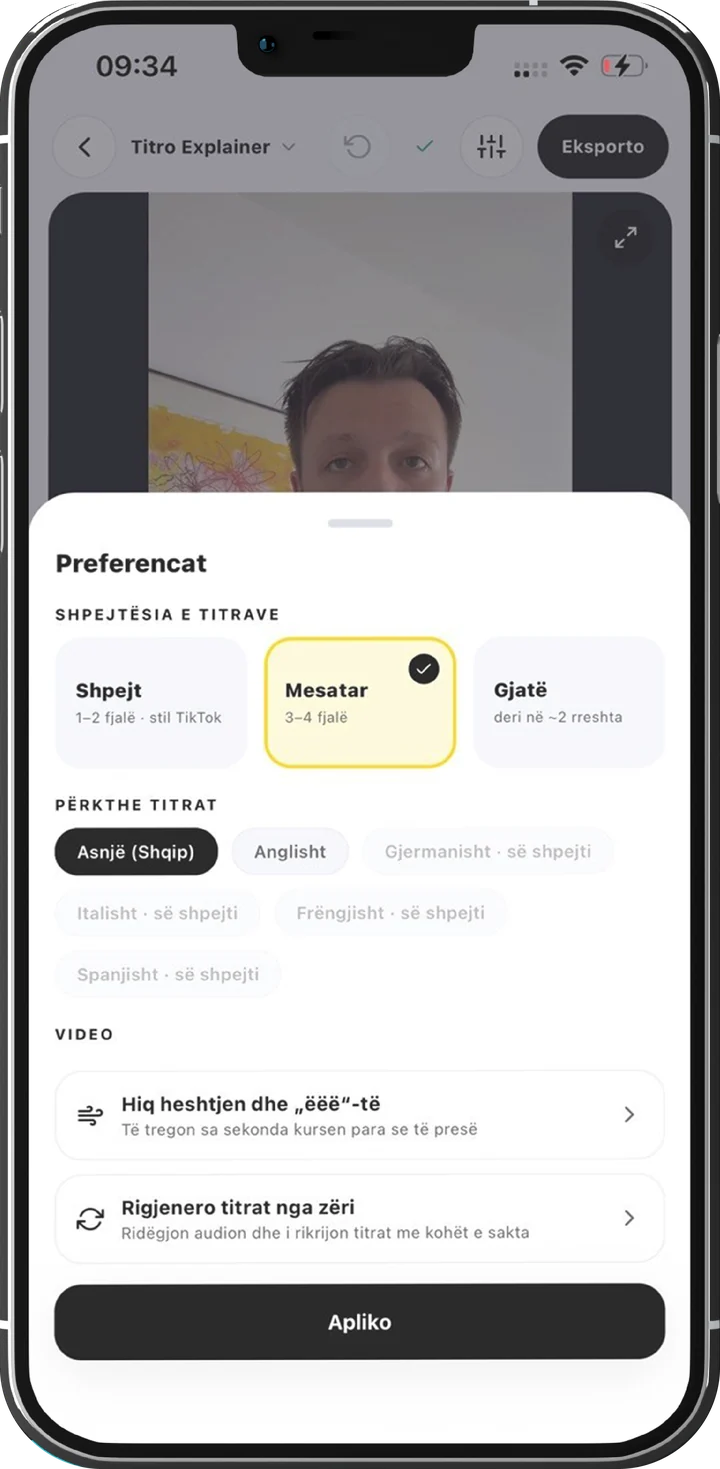
Tap the sliders icon at the top of the editor, next to Export. Under Video you will find Remove silence and filler words.
- 3
Read the number first
Titro shows how many seconds the cut would save, how many pauses and how many filler words it found, and that the captions will realign themselves. Nothing has changed yet. Close the sheet and the video is untouched.
- 4
Cut the video
Tap Cut the video. Titro removes the stretches, re-encodes, moves every caption to its new time and burns the subtitles again.
- 5
Or keep the video and clean the text
If you like your pauses but don’t want “ëëë” written on screen, tap Remove filler words from the captions only. The video stays exactly as it was, and the editor’s undo button brings the words back.
Your captions follow the cut
When you cut a video, the hard part is every timestamp that comes after the cut. Titro moves each word and each caption earlier by exactly the amount removed before it. A caption that sat entirely inside a removed stretch is dropped, because the sound it described is gone. A caption that contained a filler word loses that word and keeps all the others, including any you edited by hand. Logos and images you placed on the video move along with the captions.
| Cut the video | Filler words from captions only | |
|---|---|---|
| What changes | The video gets shorter; pauses and filler words are removed | Only the caption text; the video is untouched |
| Speed | A re-encode, so it takes a moment | Instant |
| How to undo | Restore the original video | The editor’s undo button |
| Best for | Talking-head clips, tutorials, short ads | Interviews where the pauses belong to the speaker |
Undo is real
Your upload is often the only copy you have, so cutting must never be a one-way door. After a cut, the same sheet offers Restore the original video. Titro puts the original back and moves the captions back with it. A caption you corrected after the cut stays corrected; it simply returns to its original place on the timeline. You can also cut a video that was already cut, and Titro keeps track of what came out of the original.
When not to cut
- Comedy and storytelling, where the pause is the joke.
- Emotional interviews, where a silence says something. Use the captions-only option there.
- Fast speakers. If the sheet says “No silence found to remove. Your video is already tight.”, believe it.
Two limits. In the app, the pause rule is fixed at the cautious default; there is no slider for it. And cutting is in the mobile app only for now. Titro Studio in the browser doesn’t offer it yet.
Tips for a cleaner first take
- Start talking within a second of pressing record. The lead-in gets cut anyway, but a shorter one means less to cut.
- When you lose your thread, stop and leave a clear pause instead of filling it with “ëëë”. A clean pause is the easiest thing to cut.
- Use a script for anything word-critical. Titro’s teleprompter scrolls it next to the lens while you record, and the captions still follow what you actually said.
- Clean the sound first if it is noisy. See how Titro removes background noise from video.
Try it on your longest talking clip, where the saved seconds add up. Your first video is free up to three minutes, with a small Titro mark on it.