Captions with a background box are all over TikTok and Reels: dark text on a yellow band, one rounded box per line, a word or two in bold. Some people search for them as yellow box captions, others as highlighted captions, TikTok style. Titro 1.7.0 ships this look as a preset called Pill, a switch that gives one caption the same box, and a new entrance effect called Emerge.
What the Pill style looks like
Pill draws a filled band behind each line of the caption. The band hugs the text with a little room on every side, and its ends are fully rounded, so a short line looks like a pill. When a caption runs over two lines, the export gives each line its own band.
The preset sets the rest of the look in the same tap: a yellow band, near-black text in Inter, the smallest size of any preset, captions in the middle of the frame, short lines, no outline and no word highlight. Pill sits second in the preset row, right after TikTok.
Turn it on for the whole video
- 1
Open Style
In the editor, tap Style with no caption selected. The panel works on All captions.
- 2
Tap Pill
Pick Pill in the preset row. Every caption gets the yellow band and dark text. If your captions were built with longer lines, the panel offers to rebuild them for Pill. Rebuilding drops manual edits, so choose the style first.
- 3
Pick a band colour
Under Sticker color, choose one of 24 ready colours or tap the drop to pick your own, hex field included. The text switches to dark or white with the band, so the pair stays readable.
Titro Studio on the web has Pill in its Style panel too, but no band colour for the whole project. There you set the colour caption by caption.
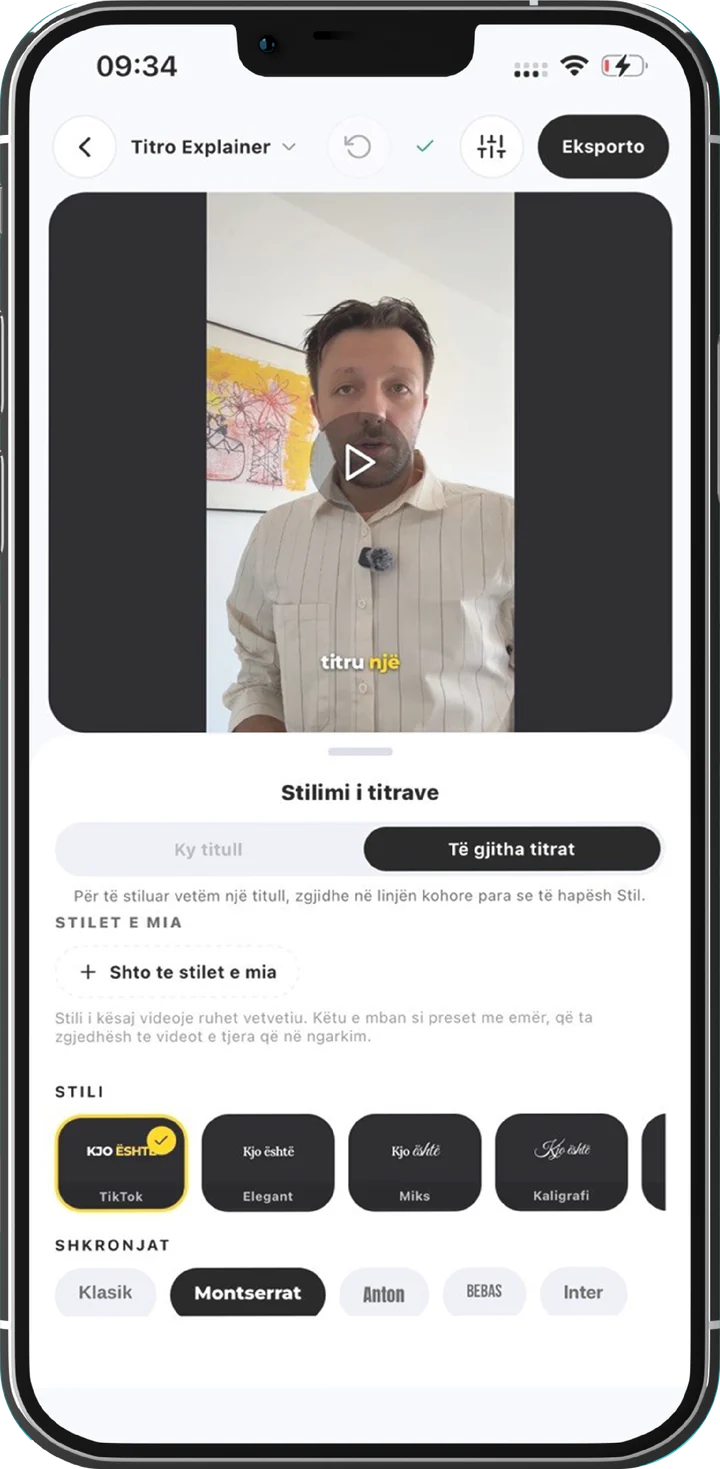
Give one caption its own box
Often the box belongs on one line only, such as the hook in the first second. Select that caption on the timeline, open Style, and the panel opens on This caption. Switch on Sticker (colored box). One tap gives that caption the whole look: the yellow band, dark text, Inter, the Pill size, no outline and no word highlight. The Sticker color row below it changes the band for that caption alone. Back to project style undoes it.
In Titro Studio the same switch lives in the ⚡ Effects panel. Pick a caption on the timeline, and the This caption section shows Sticker (colored pill), seven ready band colours and a Custom color picker. Remove this caption’s own style sets it back to the project look.
Bold words: two asterisks on each side
To set a word in bold, type two asterisks before and after it inside the caption text, like **this**. The asterisks never show on screen or in the export. On the phone you change the text with Edit. In the Studio you type into the caption, and the This caption section reminds you: Write **word** in the text to make it bold.
If you forget the closing asterisks, the bold runs to the end of that caption, in the editor and in the export alike. The markers are removed before the words are timed, so the word highlight still lands on the right word.
Bold only shows on faces that are not heavy already. Pill uses Inter Regular and switches bold words to Inter Bold. Classic, Montserrat and Inter are bold throughout, so the asterisks change nothing on those three.
Emerge: an entrance from the speaker’s side
Emerge joins Typewriter, Pop, Bounce, Zoom, Fade, Slide, Shake and Pulse. The caption fades in quickly and glides sideways into place over about a third of a second. It starts from the side that faces the middle of the frame: a caption on the left half comes in from the right, one on the right half from the left.
On the phone, tap Effects in the editor. With no caption selected, the effect applies to every caption. With one selected, it applies to that caption only. In the Studio, open ⚡ Effects, pick a caption and choose Emerge under Entrance effect. Set it on every caption copies it to the rest of that layer.
Emerge needs the caption to have its own spot in the frame, which it gets as soon as you drag it. In the export, a caption still sitting in the default position rises in like Slide instead.
Behind the person, now on any caption
Until 1.7.0, only layer titles could go behind the speaker. Now the Behind the person switch works on any caption, your spoken subtitles included. Drag a Pill caption next to your head, switch on Behind the person, choose Emerge, and in the export the band slides out from behind you.
On the phone, select the caption, open Style or Effects and tap Behind the person in the row of buttons above the settings. In the Studio it is a checkbox in ⚡ Effects, under This caption. The cutout of the person is made at export, so both editors show that caption dimmed until then.
The limits from the text behind person guide still apply. A video can have up to three captions behind the person, with up to 30 seconds of them in total. Captions past that, or a cutout that fails, are drawn in front, and the export always finishes.
The preview shows the band as it exports
The phone preview and the Studio draw the band, the bold words and the Emerge glide as you set them, from the same style tables and font files as the export, the band’s padding included. Only the cutout behind the person waits for the export.
Where it is today
- Titro Studio on the web: everything in this post, with seven band colours and a custom colour per caption.
- Titro for iPhone, version 1.7.0: all of the above, plus a band colour for the whole project with 24 ready colours and a free picker.
- Titro for Android: version 1.7.0 follows on Google Play.
Captions can be in English, German, Italian, French or Albanian. Your first video is free and carries a small Titro mark. Paid plans export clean. The guide to animated caption styles covers the other presets and effects. A good first test: one Pill caption with a bold word, dragged beside your head, behind you, with Emerge.