You can’t go back and record the interview again. The guest has left, the event is over, and the fan in the corner was running the whole time. That is why Titro treats the sound as the first step of the job. If you ask for it, Titro will remove background noise from video audio right after the upload, before it writes a single subtitle.
This post explains what that cleanup does, the one thing it can’t do, and how to record so that it has less to fix.
Where the setting lives
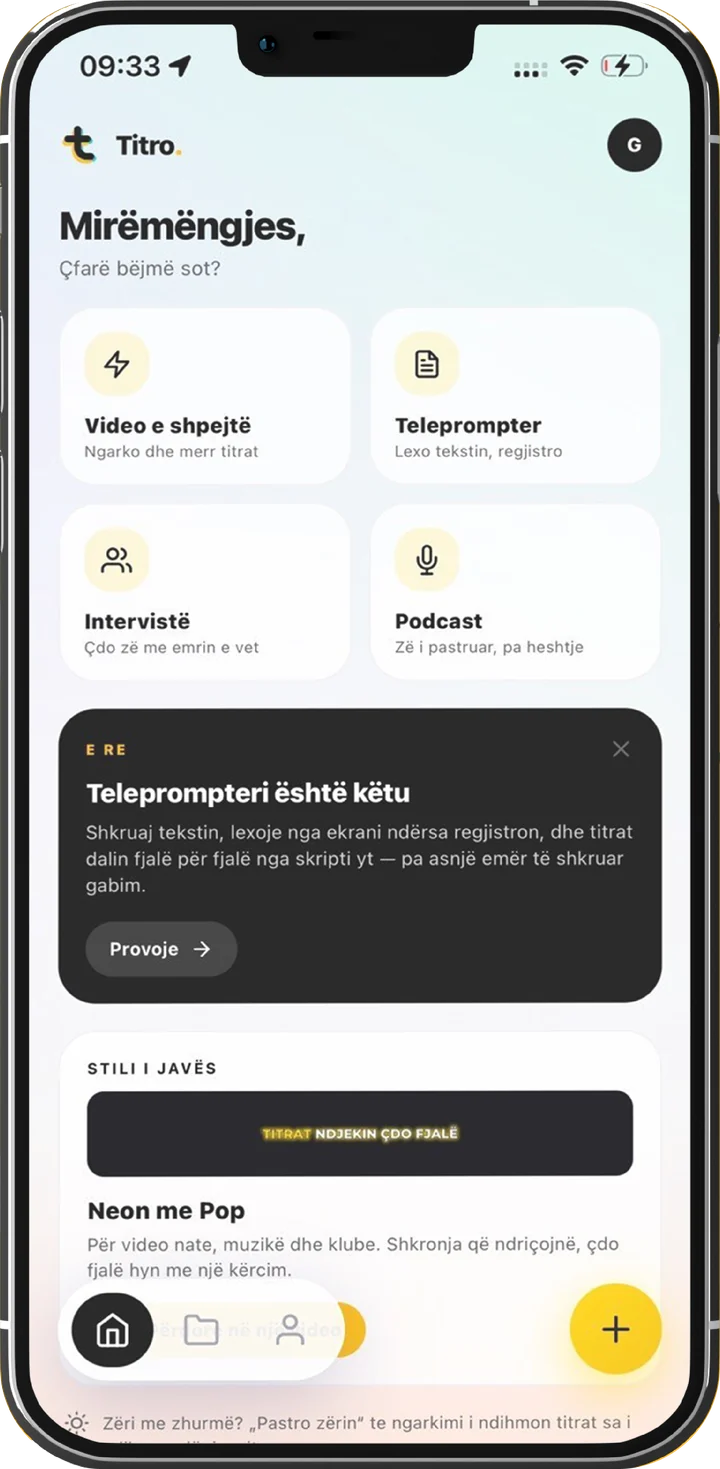
Audio cleanup is chosen on the upload screen of the Titro app for iPhone and Android, because that is the last moment the recording can be improved. You will find two rows there.
| Setting | Options in the app | What it is for |
|---|---|---|
| Clean up audio | No cleanup, Light, Strong | Light is for light background noise. Strong is for wind, traffic or a noisy room. |
| Loudness | No change, Social media, Podcast, Broadcast | Sets the level of the finished video: −14 LUFS for TikTok, Reels and YouTube, −16 for Spotify and Apple, −23 for the EBU R128 broadcast standard. |
Both choices are remembered on your phone, so if you always film in the same loud workshop, you set it once. The Podcast quick start on the home screen picks Light cleanup and the Podcast level for you when you haven’t chosen anything yet. You can still change both before you upload.
Two limits to know. The setting isn’t in the editor, because by the time you are editing captions the cleanup has already run. And uploads from Titro Studio in the browser don’t offer it at the moment, so for a noisy recording, upload from the app.
Two cleanups from one recording
This is the part that is easy to get wrong. A transcriber and a human listener want different things from the same sound. A person wants the voice to sound warm and clear. A speech recogniser only cares how much of the original signal survived, and heavy noise removal invents small artefacts that it can mistake for words.
So Titro makes two versions. The copy that goes to the transcriber is cleaned gently: low rumble removed, a light noise reduction pass, and a speech leveller so a quiet speaker isn’t treated as silence. Nothing that changes the colour of the voice.
The copy that ends up in your exported video gets the full chain, in the order a sound engineer would patch it:
- A high-pass filter for rumble, handling noise and wind.
- Noise reduction, stronger at Strong, with a second pass for hiss at that level.
- A de-esser for the sharp “s” sounds a clip-on mic adds.
- A small cut around 250 Hz to take out mud, and a lift around 3.2 kHz to bring the words forward.
- Gentle compression, then the loudness target you picked, measured in two passes so a quiet file lands on the number instead of overshooting.
The cleanup only changes the sound track. The editor plays the cleaned version, so what you hear while you check the subtitles is what the export will contain.
It never breaks a job
Cleanup is an improvement to a video that would have been fine without it, so it is built to step aside when something goes wrong. If any part of it fails, Titro logs the error and carries on with your original sound. There is also a check for the worst case: on an unusual recording, a noise filter can decide the voice is noise too. If the cleaned track comes out silent when the original wasn’t, Titro throws the cleaned version away and keeps the original. A noisy video is always better than a silent one.
What it can’t fix: room echo
Echo is the one problem Titro’s cleanup doesn’t address. Noise is a separate sound sitting on top of the voice, so it can be reduced. Echo is the voice itself, bouncing off bare walls and arriving a fraction of a second late. Removing it properly takes a different kind of tool, and rather than offer a filter that smears the echo around, Titro leaves it alone.
Echo is also the easiest problem to avoid while recording. Which brings us to the tips.
Recording tips that beat any filter
- Get the microphone close. Halving the distance between your mouth and the phone does more than any setting. A cheap clip-on mic does even more.
- Pick a room with soft things in it. Curtains, a sofa, a bookshelf and a rug all absorb echo. An empty kitchen with tiles is the worst room in the house.
- Switch off what you can. Fans, air conditioning, a fridge that hums, notifications on the phone that is recording.
- Shield the mic from wind outside. Turn your back to it, or stand where a wall breaks it. Strong cleanup helps with wind, but less wind is always better.
- Record ten seconds first and listen on headphones. It is the fastest way to hear the hum you stopped noticing an hour ago.
- Don’t shout over the noise. A raised voice sounds strained, and the cleanup can lower the noise but can’t relax your voice.
Step by step
- 1
Open the upload screen
Tap the plus button in the app, or the Podcast quick start on the home screen if the clip is a conversation.
- 2
Pick the cleanup
Light for a normal room with a little hum, Strong for traffic, wind or a busy space. Leave it on No cleanup for a clean studio recording.
- 3
Pick the loudness
Social media if the video is going to TikTok, Reels or YouTube. Podcast for spoken audio, Broadcast if a TV station asked for EBU R128.
- 4
Upload and check
Titro cleans the sound, then writes the subtitles. Listen to the first seconds in the editor; that is exactly what the export will sound like.
Clean sound also makes the next step easier. Once the hum is gone, the long pauses stand out, and Titro can take those out too, as described in how to remove silence and filler words from video. Try the cleanup on your noisiest recording. Your first video is free up to three minutes, with a small Titro mark on it.