Animated captions are subtitles that move with your voice. The word you are saying lights up, a line pops in, a box jumps from word to word. On Reels and TikTok they do two jobs: people can follow with the sound off, and the motion keeps their eyes on the screen. Titro writes the words from your audio and gives you a set of caption styles for Reels, TikTok and Shorts to start from, plus every setting behind them.
This guide goes through what is there, in the order you meet it in the app.
Caption styles for Reels: the 15 presets
A preset sets the whole look in one tap: the word highlight, the position, capitals, size, outline, font and how many words show at once. Pick one, then change any single part without losing the rest.
| Preset | What it looks like |
|---|---|
| TikTok | Capitals at the bottom, the spoken word in yellow, a thick outline. The default. |
| Pill | Dark text on a yellow rounded band behind each line, in the middle of the frame, with any word you wrap in ** set in bold. |
| Hype | Huge Anton capitals in the middle of the frame, each word appearing as you say it. |
| Elegant | A serif face at the bottom with no word highlight. Calm and editorial. |
| Mix | Serif text where the spoken word switches into a script face. |
| Script | Large calligraphy in the middle of the frame. |
| Top | Big capitals at the top, short lines. |
| Box | The spoken word sits on a rounded box in the highlight colour. |
| Podcast | Long lines on a translucent band, no word highlight. Reads like film subtitles. |
| News | Bebas capitals on a band at the top, like a news caption moved up. |
| Karaoke | Everything said so far fills with colour, the rest stays white. |
| Stadium | Karaoke fill in big Anton capitals, middle of the frame. |
| Pop | The spoken word changes colour and grows. |
| Neon | Capitals with a glowing outline. |
| Minimal | Plain text in long lines, nothing animated. |
Some presets read best with a certain line length. Podcast wants long lines, Hype wants one or two words. When your project doesn’t match, the style panel offers to rebuild the lines for that preset. Rebuilding makes the captions again from the transcript and drops manual edits, so pick your style before you fix words by hand.
Word highlight: six ways to follow the voice
Every word in Titro carries its own timestamp, which is what lets the highlight land on the right word at the right moment. The Word highlight row in the style panel decides what happens to it:
- None: one steady line, no per-word change. Podcast and Minimal use it.
- Color: the spoken word turns the highlight colour. The classic.
- Box: the spoken word sits on a rounded rectangle in the highlight colour.
- Karaoke: everything spoken so far fills with colour, word by word.
- Pop: the spoken word changes colour and grows a little.
- Font: the spoken word switches into a second face, a script by default. Mix is built on it.
Entrance effects
Effects decide how a caption arrives. They carry the names creators already know, and Titro shows them in English in every language: None, Typewriter, Pop, Bounce, Zoom, Fade, Slide, Emerge, Shake and Pulse.
- Typewriter reveals the line word by word as you speak.
- Pop, Bounce and Zoom scale the line in, from a quick pop to a big zoom.
- Fade eases it in. Slide rises slightly as it fades in.
- Emerge fades a caption in while it glides sideways from the centre of the frame to the spot you dragged it to, and with Behind the person on it slides out from behind you.
- Shake gives it a short wobble.
- Pulse adds a small beat on every new word, for as long as the caption is up.
Open Effects in the editor. With no caption selected, the effect applies to every caption. With a caption selected, it applies to that one only, which is how you make a single line bounce in a video where everything else fades.
One caption, its own look
Pick a caption on the timeline before you open Style, and the panel opens on This caption. What you change there applies to that caption alone: font, size, text colour, highlight colour, outline, word highlight and capitals. Use it to make one word of the video shout, or to set a quote in a different face.
Two buttons keep it tidy. Apply to all captions copies that caption’s look onto the rest, and Back to project style clears its own look so it follows the project again. Position works the same way: drag any caption anywhere in the frame, or use Height from bottom to lift all of them at once, clear of the app’s buttons.
Fonts and colours
Eight fonts come with Titro: Classic, Montserrat, Anton, Bebas, Inter, Tekst, Elegant and Script. Classic is Liberation Sans, Bebas is Bebas Neue, Tekst is Inter in its regular weight with bold words in Inter Bold, Elegant is Titro Serif and Script is Great Vibes. The app, the studio and the export use the same font files, which is part of why the preview matches the result.
Text colour has a row of 24 ready colours and a free picker with a hex field, so you can type your brand colour exactly. The highlight colour has the same choice. Outline offers None, Thin, Thick and Neon, a soft glow. Band behind captions puts a translucent bar behind the whole line for busy footage, and ALL CAPS is a switch of its own.
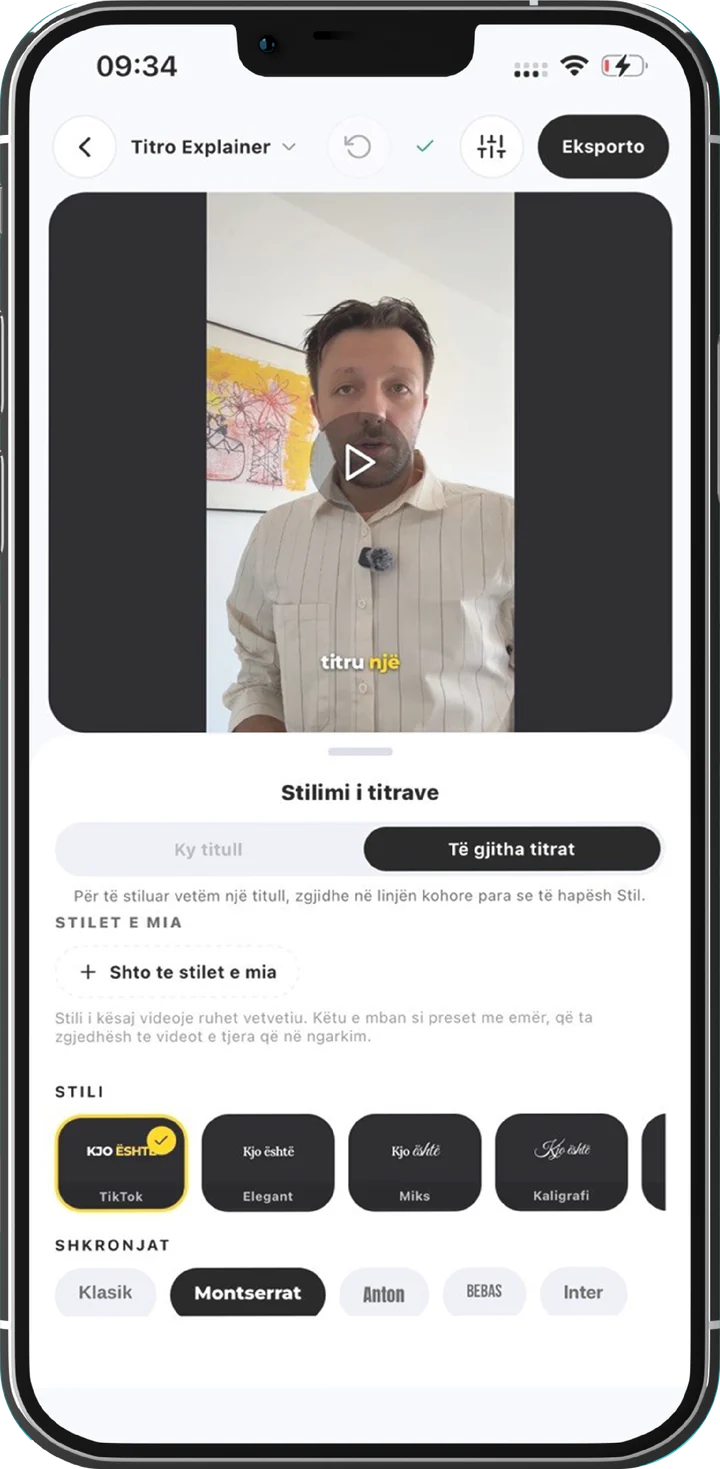
What the editor shows is what you export
The editor preview and the exported video read the same style tables, the same font files and the same measurements. Letter size, line spacing and weight in the export match what you saw in the editor. Pick a look, watch it on your actual footage, and that is the video you get, at its original resolution.
When a look is right, save it to My styles and every new video starts with it. It is the quickest way to keep a series looking like one series.
In the app and in the studio
Everything above is in the Titro app on iPhone and Android. Titro Studio on the web has the presets, fonts, the layer font, size, position, text and highlight colours, capitals, My styles and an entrance effect per caption. Word highlight and outline are set in the app for now. A look made on the phone keeps both when you edit it in the studio.
Your first video is free up to three minutes and carries a small Titro mark. Try three presets on the same clip and keep the one you would stop scrolling for. Where captions should sit on TikTok, and why, is on the TikTok captions page.