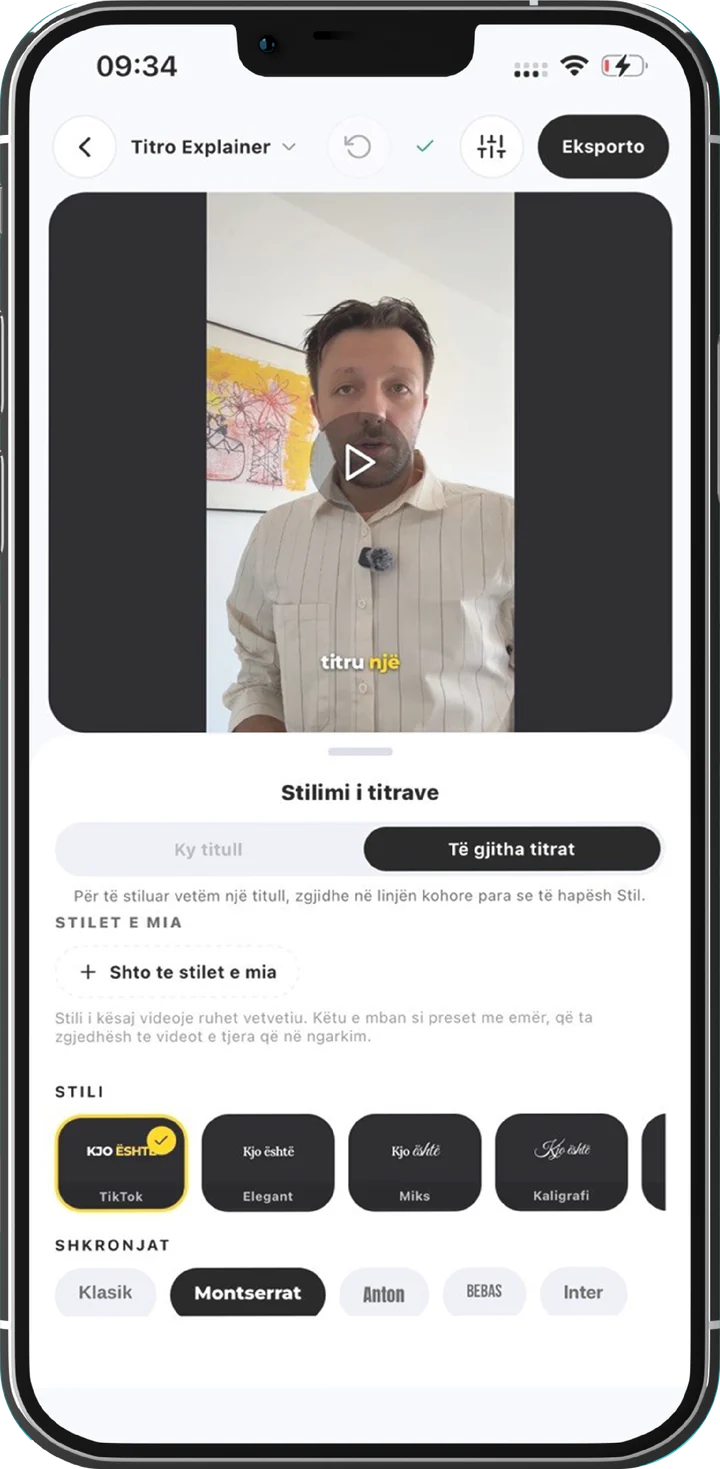
You have seen it on Reels and TikTok: a huge word fills the frame, and the person talking stands in front of it, as if the word were painted on the wall behind them. Editors call it the text behind person effect, or text behind subject. Done by hand, it means cutting the person out of every frame the word is on screen. In Titro it is one switch on a caption.
Below is how it works, how to set it up in a couple of minutes, and the few cases where the title falls back to sitting in front.
How the text behind person effect works
Titro has two caption tracks. The first holds your subtitles: the words you say, timed to your voice. The second holds layer captions, free text you type yourself, placed anywhere in the frame and shown for as long as you set on the timeline. A layer caption is what you use for a title, a keyword or a punchline. It keeps the exact text you typed, even when your subtitles are in capitals, and it has no word highlight.
When you mark a layer caption Behind the person, the export does three things for the seconds that caption is on screen. It draws the title onto the video. It runs a model trained to find people over those frames and cuts out the person. Then it lays the person back on top, so the title ends up between the speaker and the background.
Only the title’s own window gets the cutout. The rest of the video renders the usual way, which keeps the export quick. Your other captions stay in front of everything, the speaker included. Since version 1.7 any caption can go behind you, subtitles too, but only the ones you switch on.
How to set it up in the app
- 1
Add a layer caption
In the editor, move the playhead to where the title should appear and tap Layer. A new text appears on the second track of the timeline. Type your title. One or two words work best.
- 2
Make it big and place it
Drag the title where you want it in the frame. Behind a head, the upper third usually works. Open Style with the caption selected and the panel opens on This layer, where you set its size, text colour and font. The layer has its own font row, Layer font, and Script is only the default.
- 3
Switch on Behind the person
In the same panel, tap Behind the person. A short note under it confirms that the export puts the title behind the person.
- 4
Set the length
Drag the caption’s edges on the timeline so the title stays up for exactly the moment it belongs to.
- 5
Export
The cutout is made while the video exports, so that export takes a little longer. Changing the title’s words later doesn’t redo the cutout. Moving or stretching the title on the timeline does, because the cutout has to cover the new seconds.
Why the preview shows the title dimmed
The editor on your phone can’t cut you out of the video while it plays, and a fake cutout would show you something the export won’t produce. So the app draws a Behind the person title at reduced opacity. A faded title in the editor is your sign that it will sit behind you in the export. Everything else in the preview is what you export: the size, the position and the font.
Titro Studio on the web handles it the same way. It shows the title dimmed and keeps the setting when you edit and save there, so a title you set up on the phone stays behind the person after you fix a few words in the browser. Since 1.7 the Studio has the switch too, as a Behind the person checkbox in a caption’s own style panel.
Getting a clean cutout
- Put a person in front of the title. The cutout is made to find people, so use the effect on shots where a person is what should stand in front of the word.
- Place the title where the person covers part of it. The effect only reads when some of the word disappears behind a head or a shoulder. A title floating in empty space looks like any other title.
- Keep the title short in time. Titles of six seconds or less get the most cutout frames per second and look smoothest. Longer titles work too, with fewer frames, which can show when you move a lot.
- Keep logos and stickers away from the person while the title is up. For those seconds the person is laid back over the frame from the original video, so the part of a picture that overlaps them disappears. A corner the speaker never reaches is safe.
- Use it a few times per video, not on every line. Each video can have up to three titles behind the person, with up to 30 seconds of title time in total. Titles past that are drawn in front.
What happens when the cutout fails
Sometimes the cutout can’t be made, for example when the model is briefly unavailable. Titro never fails your export over it. The title is drawn in front of the person, like a normal layer caption, and the video exports as usual. If the problem was temporary, your next export tries the cutout again.
Titles past the limit of three per video are handled the same way. You always get a finished video with every title on it. The only thing that can change is whether a title sits in front or behind.
Where it fits
- A hook word in the first second of a Reel or a TikTok, behind your head as you start talking.
- Chapter titles in a longer talking video, one word per section.
- A name or a product name the first time you say it.
Pair it with a subtitle style that leaves room for the title. The guide to animated caption styles covers the presets, and TikTok captions covers where subtitles sit on that app. Your first video is free up to three minutes and carries a small Titro mark. Paid plans export without it. Try the effect on a clip you already have, with one word behind your head in the first second.