Home Teleprompter for Zoom

Under the webcam a browser window next to the call

A teleprompter for Zoom calls and for speeches.

To use a teleprompter on Zoom, open the script in a small window right under your webcam and read from it while the call runs beside it. Titro’s free online teleprompter is that window: a browser page you place at the top of the screen, with the speed in words per minute and Space to pause. It does not appear inside Zoom and it is not a Zoom add-on: it is a separate window that only you can see, unless you share your whole screen.

From €4.99/month
Or work on the web →

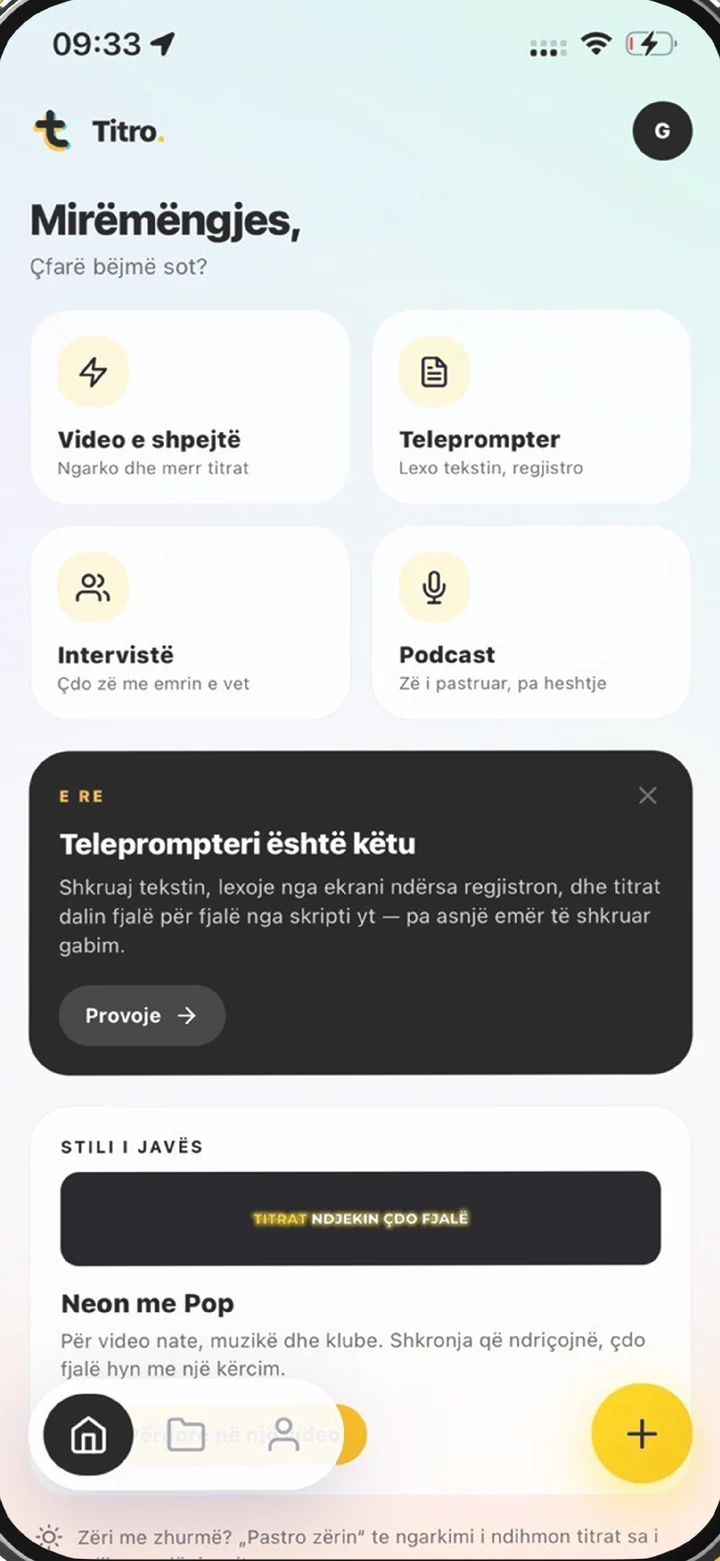
Teleprompter for Zoom: the Titro home screen with the Teleprompter tile
why

When a Zoom teleprompter helps.

01 The opening, the pitch, the numbers

Most calls do not need a script. The parts that do are the first minute of a presentation, a sales pitch, a webinar introduction and anything with figures you must not get wrong. Keep those in the prompter and talk freely for the rest.

02 Eyes near the lens, not on a note below it

Reading notes on the lower half of the screen makes you look down at the people on the call. The prompter puts its reading line about a third of the way down its window, so a small window at the top of the screen keeps your eyes close to the camera.

03 Works the same with Teams and Meet

Because it is a separate browser window, the prompter does not care which call app you use. Zoom, Microsoft Teams, Google Meet and Webex all work the same way: call in one window, script in another.

04 A speech prompter as well

For a talk in a room, the same page runs full screen on a laptop or an iPad on the lectern. Large text, a slower pace and Space to pause while the audience laughs or a slide changes.

steps

How to use a teleprompter on a Zoom call.

01

Open the prompter in a browser

Go to titro.live/online-teleprompter, paste the script, set the speed and choose Small or Medium text for a call.

02

Put the window under the webcam

Make the browser window narrow and short, and drag it to the top centre of the screen, right under the camera. Move the Zoom window to the side or below.

03

Join the call

Start or join the Zoom meeting as usual. Check your video preview: your eyes should look at the camera when they rest on the reading line.

04

Click the prompter, then start

Click once in the prompter window so the keyboard goes to it, then press start. Space pauses, the arrows change speed, Esc closes it.

in practice

Zoom prompters and speech prompters, in practice.

Keyboard focus, and the Space bar in Zoom

Keyboard shortcuts go to whichever window you clicked last. If you click into Zoom to unmute or to read the chat, click back on the prompter before you press Space. In Zoom, holding Space while muted can unmute you for as long as you hold it, so a Space press that lands on the wrong window does something else.

Screen sharing without showing the script

Other people only see the prompter if you share your entire screen. When you present, share a single window, such as the slides or the browser tab with your demo, and the script stays private.

Reading on a call without sounding read

Write the script in short sentences you would actually say, and set the pace a notch under your normal speed: calls lag, and people need a beat to react. Pause at the end of each point and look at the camera before you go on. For more, see how to read a teleprompter.

Using it as a speech prompter

On a lectern, put the laptop or iPad where you can read it without bending, go full screen, choose Large text and start slower than you think. Space pauses the scroll during applause or a question, and the arrows let you catch up. If the device sits under a beam-splitter glass at an event, turn on Mirror. The prompter works in Safari on iPad and iPhone as well as on a Mac or a PC.

After the call: captions and a transcript

If you record the meeting, the recording is a video or audio file you can upload to Titro Studio. Titro writes a transcript with each speaker named and can burn captions into the video for anyone who missed the call. It does not join the call or transcribe it live. The first file is free up to three minutes, and Creator is €4.99 a month for 300 minutes. The details are on transcribe video to text.


questions

What you should know.

Does the teleprompter show inside Zoom?

No. It is a separate browser window that you place under your webcam. Zoom runs as usual next to it.

Can the other people on the call see my script?

Not unless you share your whole screen. Share a single window instead and the script stays private.

Is there a Zoom app or integration?

No. Nothing connects to Zoom. You open the free prompter in a browser and use it beside any call app.

Does it work with Microsoft Teams and Google Meet?

Yes, in the same way: the script in one window, the call in another.

Can I use it for a speech on an iPad?

Yes. Open the page in Safari on the iPad, paste the script and choose Large text.

Does Titro transcribe the Zoom call live?

No. If you record the call, you can upload the recording afterwards and get a transcript and captions.

Is it free?

Yes. The browser prompter is free, with no account and no watermark, and the script stays on your device.

also

Subtitles for everywhere you post.

Put your script under the webcam before the next call.

Free, in the browser, next to Zoom, Teams or Meet.

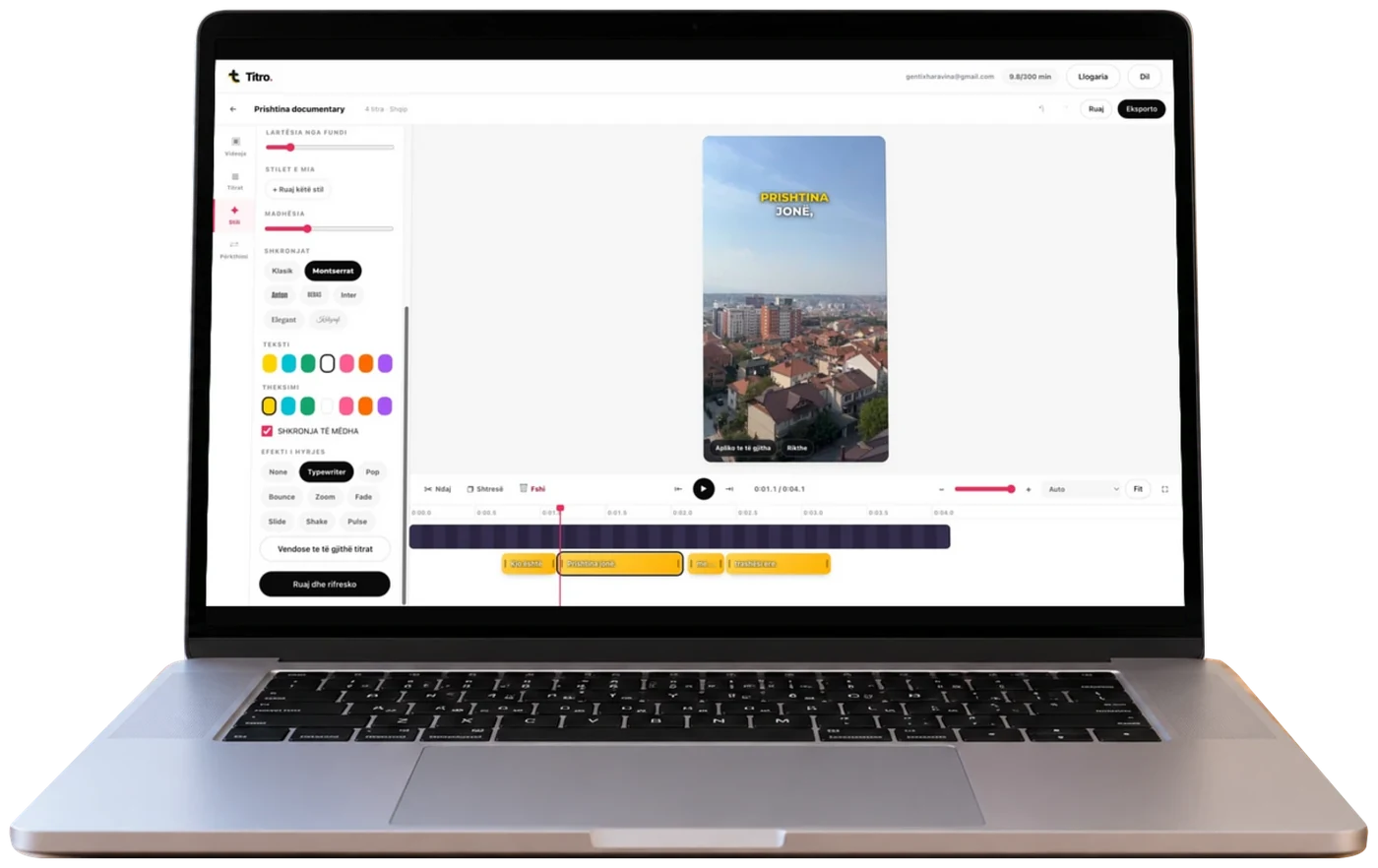
Titro Studio open on a laptop, with subtitles over a video