Home Teleprompter for Mac

Safari or Chrome nothing to install on the Mac

A teleprompter for Mac that runs in your browser.

The quickest teleprompter for a Mac is one you do not install. Titro’s free online teleprompter is a web page that runs in Safari or Chrome on a MacBook Air, a MacBook Pro, an iMac or a Mac mini. To be plain about it: there is no Titro app for macOS. On a Mac the prompter is the browser page, and that is all it needs to be.

From €4.99/month
Or work on the web →

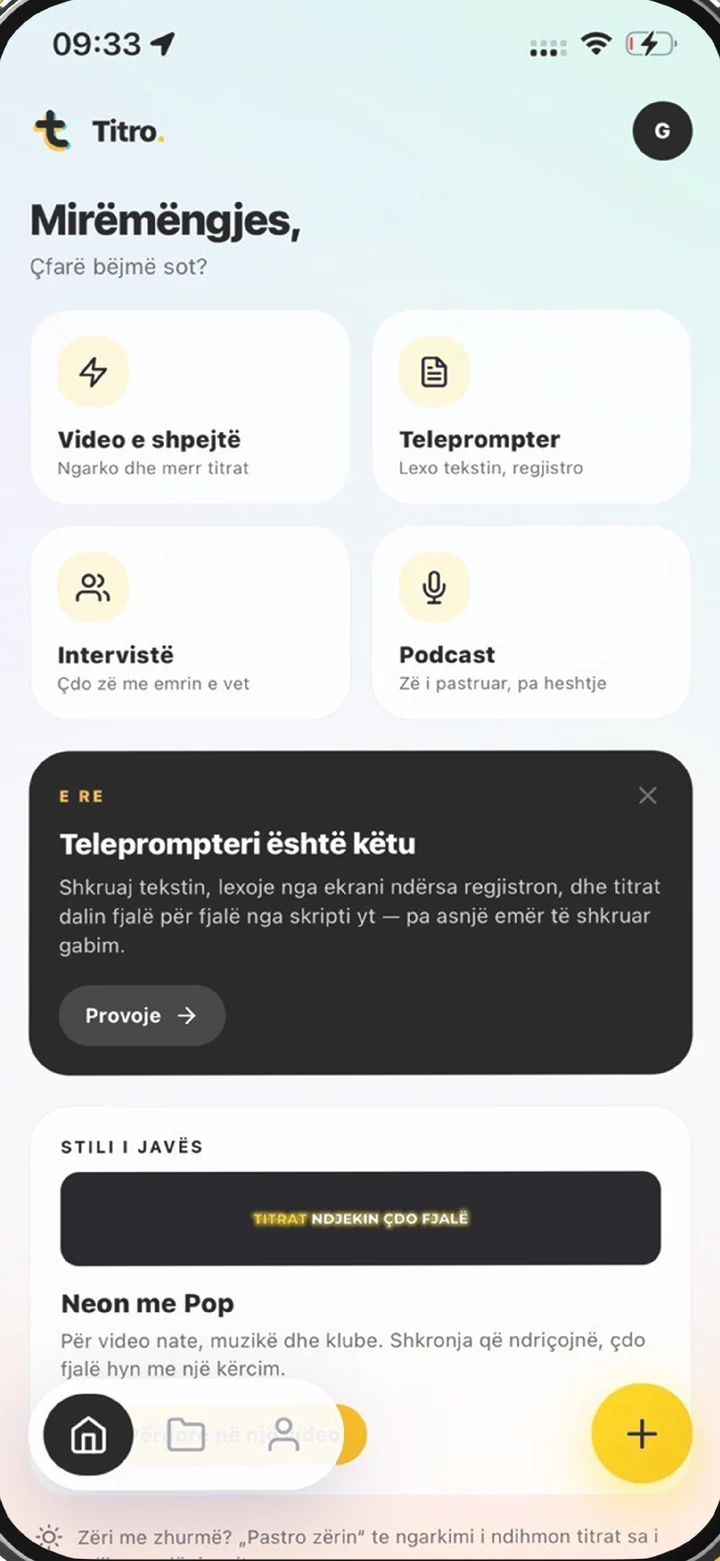
Teleprompter for Mac: the Titro home screen with the Teleprompter tile
why

Why a browser teleprompter suits a Mac.

01 Nothing to install, nothing uploaded

Open the page and paste the script. The text stays in the browser on that Mac: it is not sent anywhere, and there is no account to create. The page remembers the script, the speed and the text size the next time you open it in the same browser.

02 The camera is at the top, so the text should be too

A MacBook camera sits in the middle of the top edge of the screen. The prompter fills its own window and puts the reading line about a third of the way down. Make the window narrow and push it up to the top of the screen, and the line you read from ends up a few centimetres below the lens.

03 Run it from the keyboard

Space pauses and starts again, the up and down arrows change the speed by ten words per minute, and Esc closes the prompter. A click on the text also pauses it. Speed goes from 60 to 260 words per minute, and 140 is where it starts.

04 What it is not

It does not record you and it does not write captions. It scrolls your script, and you record with whatever you already use on the Mac. Titro Studio, which also runs in the browser, is where the recording gets its captions afterwards.

steps

How to use a teleprompter on a Mac.

01

Open the prompter

Go to titro.live/online-teleprompter in Safari or Chrome. A short sample script is already in the box, so you can try it before pasting your own.

02

Paste the script and set it up

Paste the text, set the speed in words per minute and pick Small, Medium or Large text. Turn on Mirror only if the screen sits under a beam-splitter glass.

03

Place the window

For a webcam take, narrow the browser window and drag it to the top centre of the screen. For a speech or a rig, make it full screen with the green button or Control-Command-F.

04

Press start and read

A 3-2-1 countdown runs, then the text scrolls. Press Space to pause, use the arrows to change pace, and Esc to stop.

in practice

The teleprompter on a MacBook, in practice.

Recording on the Mac itself

Keep the prompter in one window and the recording app in another: QuickTime Player’s New Movie Recording, Photo Booth or the camera view of the tool you film with. Start the recording, click back into the prompter so the keyboard controls reach it, and press start. When the take is done, upload the file to Titro Studio in the same browser and the captions come back timed to your voice. MOV and MP4 files both work.

MacBook Air, MacBook Pro or an external monitor

On a 13-inch screen, Medium text in a narrow window keeps your eyes close to the lens. On a larger monitor with a webcam clipped to the top, the same rule applies: the narrower the window, the less your eyes travel across a line, and the less the viewer sees them move. If the Mac drives a monitor under a beam-splitter glass, drag the window onto that monitor, switch on Mirror and go full screen. An iPad under the glass works too, as described on the teleprompter for iPad page.

When the iPhone is the camera

If you film on the phone rather than on the Mac, the Titro app for iPhone has the same prompter built into the camera. The script scrolls under the front lens, the app records the take, and the captions follow what you said, with names spelled the way the script has them. That workflow is on the teleprompter app for iPhone page.

Reading without looking like you are reading

Short lines, a speed a notch under your natural pace, and a line break wherever you want to breathe. Read the script aloud once before the first take and rewrite the sentence you trip on. The longer version is in the guide on how to read a teleprompter.

What is free and what is not

The browser prompter is free, with no sign-up, no watermark and no time limit. Captions for the recording are a separate step: your first video is free up to three minutes, with no card and a small Titro mark. After that, Creator is €4.99 a month for 300 minutes. What other teleprompter software offers, and how this one compares, is on the teleprompter software page.


questions

What you should know.

Is there a Titro teleprompter app for Mac?

No. There is no macOS app. On a Mac the teleprompter is a free web page that runs in Safari or Chrome, with nothing to install.

Does it work on a MacBook Air?

Yes. It works on any Mac with a current version of Safari or Chrome, including MacBook Air, MacBook Pro, iMac and Mac mini.

Is my script uploaded anywhere?

No. The text stays in the browser on your Mac. The page remembers it on that Mac so it is there next time.

How do I make it full screen?

Click the green button at the top left of the browser window, or press Control-Command-F. Esc closes the prompter.

Can it record me while I read?

No. Record with QuickTime Player, Photo Booth or your camera app while the prompter runs in its own window. The Titro phone app is the version that records as well.

Can I mirror the text for a teleprompter rig?

Yes. Turn on Mirror before you press start, and the text reads correctly through the glass.

Is it free?

Yes. The browser teleprompter is free, with no account and no watermark.

also

Subtitles for everywhere you post.

Open the prompter in Safari and read your script.

Free, in the browser, nothing to install. Captions for the recording come after, in Titro Studio.

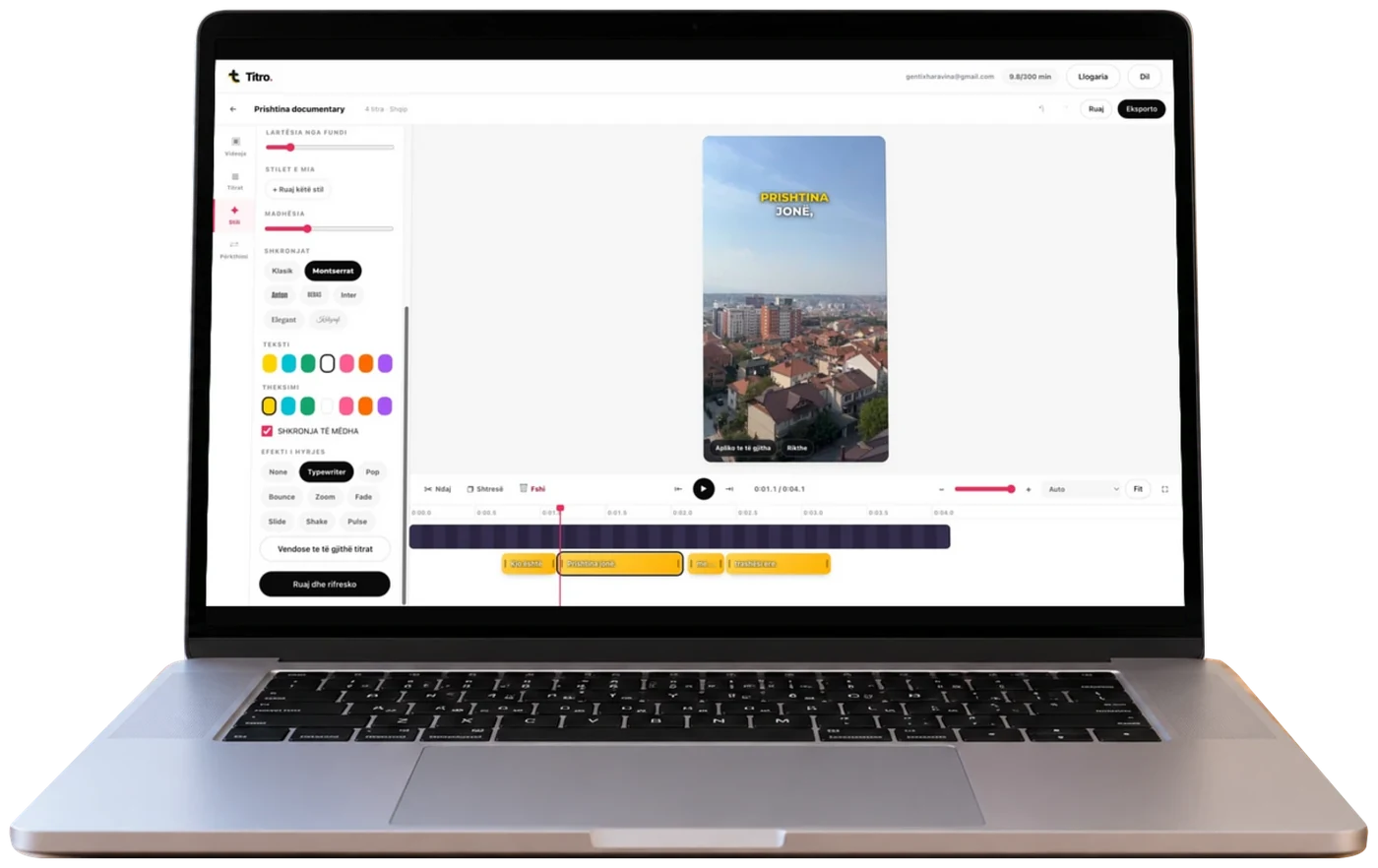
Titro Studio open on a laptop, with subtitles over a video