Step by step
Open AI voice
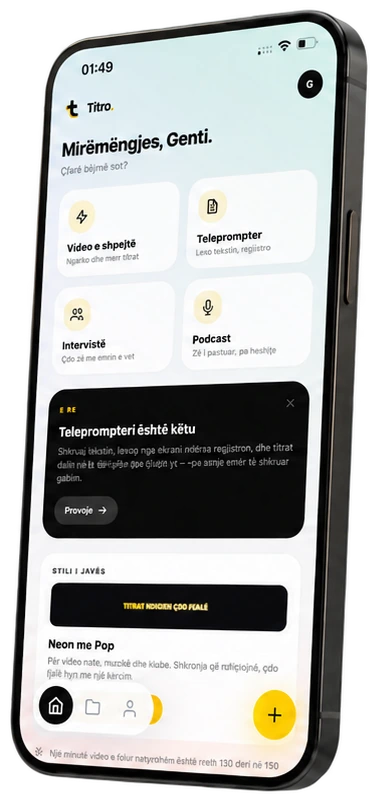
On Home tap the AI voice card. The first time, confirm that you have the rights to the text and won't imitate a real person: I agree.
Write the text
Type or paste it, or reuse the script you saved for the teleprompter.
Pick the voice
Choose the Voice language, then one of four voices. Each one has a sample to listen to.
Set the speed and preview
Speed goes from 0.8× to 1.2×. Listen to a short free preview before you generate.
Generate and download
Tap Generate voice. Download the MP3, the WAV or the timed .srt.
Open AI voice
In Projects, click the AI voice tile.
Write, pick, preview
Paste the text, choose the language and the voice, set the speed and play a preview.
Generate and download
Generate the voice. It opens with the text, ready to download as MP3, WAV or .srt.
Get more out of it
Write for the ear
Short sentences and commas where you'd breathe make any voice sound more natural.
Spell numbers your way
Write numbers and abbreviations the way they should be spoken, for example 'twenty twenty-six'.
Use the preview first
Previews are free. Try two voices on your first sentence before generating the whole text.
Good to know
- AI voice is part of the paid plans.
- Languages: English, German, Italian, French, and Albanian in beta.
- Up to 5,000 characters per voiceover. It uses your video minutes: one minute of voice, one minute.
- The voiceover is a separate audio file. Add it to your video in the editor you use.
Keep going
Record with the teleprompter
Read your script on the phone while you film, set the reading speed, and get captions of what you said, spelled the way your script spells it.
Export the video and the .srt
Save the captioned video in original quality, 1080p or 720p, share it to TikTok or Instagram, and download the .srt file for YouTube.
Turn audio into text and .srt
Upload an MP3, M4A or WAV recording and get timed text and an .srt file: interviews, podcasts, voice memos. In the app and in Titro Studio.