Step by step
Start a transcript
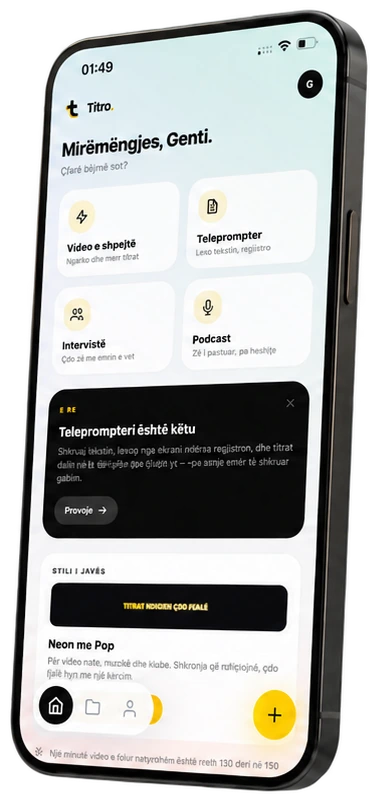
On Home tap the Transcript card and pick the audio file.
Upload
Tap Upload and transcribe.
Read and fix
Edit any line straight in the result. Changes save automatically.
Take it with you
Download the .srt, or copy the text.
New transcript
Click New project and select Transcript only (.srt).
Upload
Choose the audio file and click Upload.
Read, fix, download
Edit the lines, then Download .srt or Copy the text.
Get more out of it
Interviews: name the language
Pick the spoken language yourself for recordings with names and specialist terms.
Paste into your notes
Copy the text into your show notes or article; the .srt keeps the timestamps for later.
Same words, same fixes
My words applies to transcripts too, so guest names come out right.
Good to know
- Audio files: MP3, M4A, WAV, FLAC, OGG, Opus and AAC.
- Transcripts use your minutes like videos do.
Keep going
Export the video and the .srt
Save the captioned video in original quality, 1080p or 720p, share it to TikTok or Instagram, and download the .srt file for YouTube.
Name speakers and give them colours
Interviews and podcasts: let Titro tell the voices apart, give each speaker a name and a colour, and style one speaker differently.
Teach Titro your words
Your name, your brand, your town: add them to My words, or let Titro learn the corrections you repeat, so automatic captions spell them right.