TitroGuidesName speakers and give them colours
Languages and peopleName speakers and give them colours.
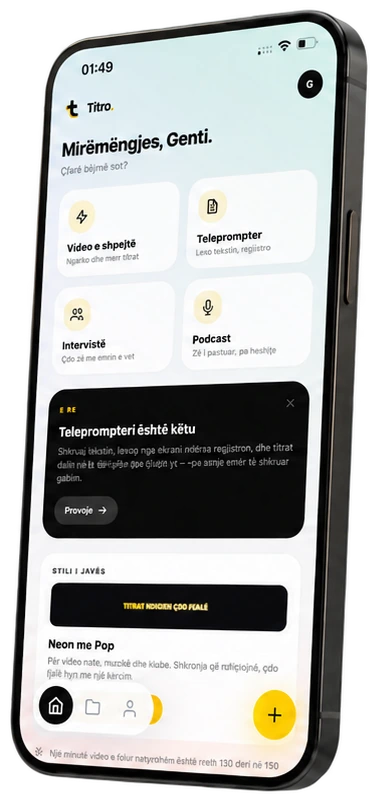
In an interview or a podcast, viewers follow better when they can see who is talking. Titro separates the voices, and you give each one a name and a colour.
Where to find it
- 1Video settings
- 2Speakers
Step by step
Turn it on at upload
Under Who’s speaking choose More than one. The Interview and Podcast cards on Home do this for you.
Name them
In the editor open Video settings (the gear at the top) → Speakers. Rename each voice and tap its colour to change it.
Style one speaker
Select one of their captions, open Style and apply the change to that speaker only.
Turn it on at upload
Tick Different speakers in New project.
Name them
Open Settings in the left rail → Speakers. Rename each voice and pick a colour.
Style one speaker
Select a caption, open Style and apply it to that speaker.
Get more out of it
One colour per person
Give the host and the guest clearly different colours. On mute, colour is how viewers know who is talking.
A row per speaker
On the phone timeline the speakers fold out into one row each, which makes long interviews easier to check.
Names in the file
The names travel into the .srt, so a transcript of the interview is ready too.
Good to know
- Switch it on before uploading: Titro separates the voices while it transcribes.
- 6 speaker colours to choose from.
Keep going
Translate your captions
Speak in one language, show captions in another: Albanian, English, German, Italian, French and Turkish, in any direction. At upload or later.
Caption styles, fonts and colours
Pick one of 15 caption styles, change font, size and highlight colour, place the captions and save your own look for every new video.
Export the video and the .srt
Save the captioned video in original quality, 1080p or 720p, share it to TikTok or Instagram, and download the .srt file for YouTube.