Everyone does it. You are fine in conversation, then the camera comes on and every second sentence starts with “um”. On camera there is nobody nodding at you, so the silence feels longer than it is, and you fill it.
Why it happens
A filler is a placeholder. Your mouth is ready and the next thought is not, so you make a sound to hold your turn. In a room that sound says “I am still talking”. On video nobody can interrupt you, so the sound has no job left.
Five habits that remove most of them
- 1
Pause instead
Close your mouth at the end of the thought and say nothing. One second of silence feels long to you and sounds confident to the viewer.
- 2
Know your first five words
Fillers gather at the start of each point. Decide exactly how each point opens and the rest follows.
- 3
Slow down
Speaking fast leaves your brain no lead time. Drop to about 140 words per minute and the gaps your fillers lived in mostly close.
- 4
Record in sections
One point per take. Nobody holds three minutes in their head without a placeholder.
- 5
Use a script for the hard parts
For an intro, a price or a definition, read it from a teleprompter. You cannot search for a word that is already on the screen.
Count them before you fight them
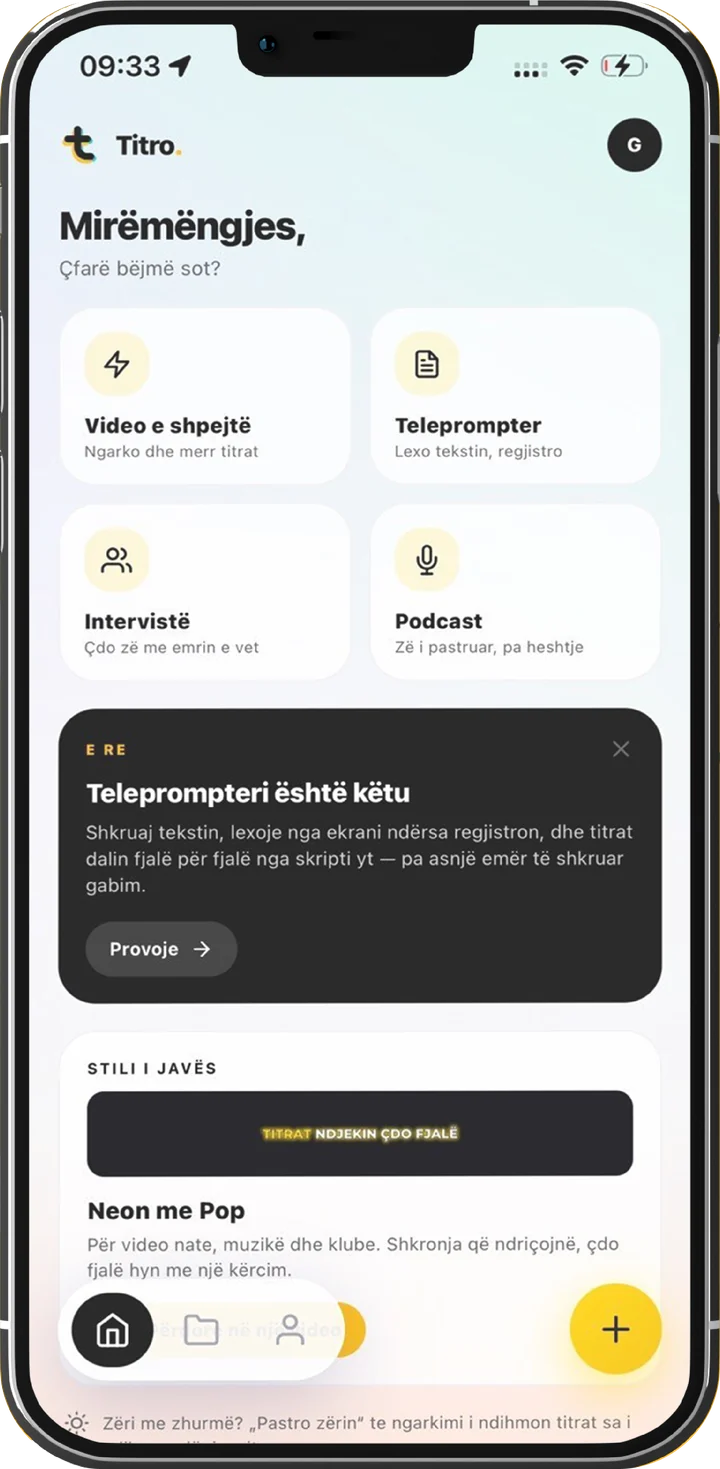
Record one minute on any topic and count. Most people are surprised in one direction or the other. In the Titro app, the Speech report of a video shows your words per minute, your long pauses and the filler sounds it heard, so you can see whether a habit is working. A take read from a script has no filler count.
Cut the ones that slip through
A few will always get past you, and that is fine. In the Titro app, Remove silence cuts long pauses and filler sounds such as “um”, “uh” and “mmm” out of the video in one tap, and the subtitles move with the cut. The full walkthrough is in remove silence and filler words from a video.
Remove silence and the Speech report are in the iPhone and Android app.
A two-minute drill
Pick any object on your desk. Talk about it for sixty seconds, and every time you feel an “um” coming, stop and breathe instead. Do it twice a day for a week. The pause becomes the habit.
Fewer fillers is practice. No fillers in the final video is editing. You can have the second one today. Your first video in Titro is free, up to three minutes.