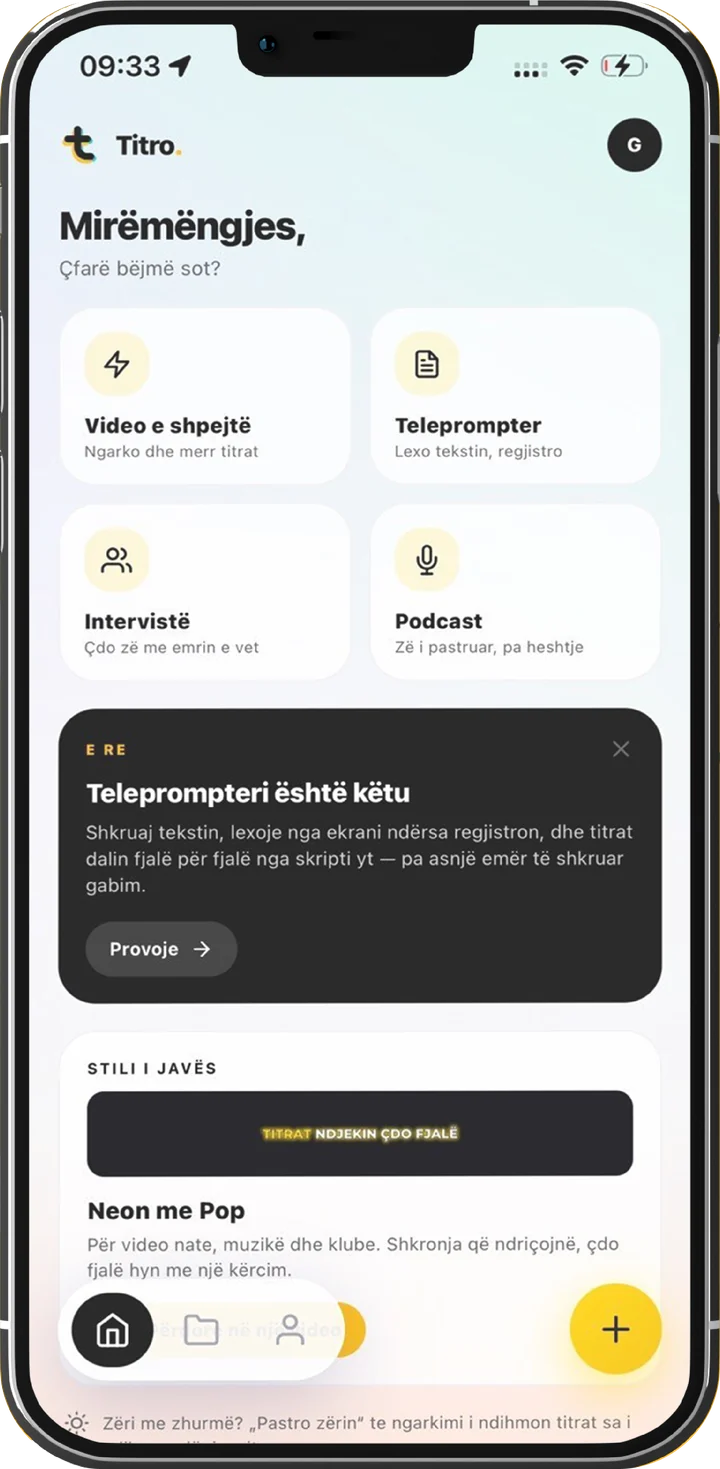
You know what you want to say. Then the red dot comes on and the third sentence is gone. A teleprompter app fixes that: your script scrolls on the screen at the speed you speak, right beside the lens, so you read it while looking at the viewer.
It works on a phone, on a laptop and in a video call. The setup is the same everywhere, and it is five steps.
The five-minute setup
- 1
Write the script the way you talk
Short sentences and the words you would use across a table. Read it once out loud and rewrite every place where you trip. If a sentence needs a breath in the middle, make it two.
- 2
Pick a speed in words per minute
Conversation sits around 140 to 160 words per minute. Start at 140. A scroll that is too fast drags you along and the take ends up breathless.
- 3
Put the text next to the lens
The closer the words are to the camera, the less your eyes move. On a phone the text sits right under the front camera. On a laptop, drag the window to the top of the screen, under the webcam.
- 4
Step back
At arm’s length your eyes sweep across the lines and the camera sees it. Half a metre further and the sweep is too small to notice.
- 5
Do one practice run
Run the whole script once without recording. You will find the sentence that is too long and the speed that is one notch too fast before they cost you a take.
On your phone: read and record in one app
A phone is the easiest teleprompter there is, because the camera and the text are a centimetre apart. In Titro the teleprompter is part of the camera, so one app scrolls the script, films you and then writes the subtitles.
- 1
Open the teleprompter
On Home, tap Teleprompter. Choose the script language and paste or type your text. A script can be up to 12,000 characters.
- 2
Set the speed
Use − and + to move the speed in steps of 10, anywhere from 60 to 260 words per minute. You can change it while you record.
- 3
Record
After a 3-2-1 countdown the text starts to scroll. Pause when you need a beat, and flip the camera if you film with the back one.
- 4
Check the take
Watch it back. Keep it and tap Transcribe, or record it again. Your script stays saved for the next try.
The subtitles come from the same take. They follow what you actually said, timed to your voice, and the script fixes the spelling, so names and product terms come out the way you wrote them. If you changed a line while speaking, the subtitles show the line you said.
On a laptop: a free teleprompter in the browser
For a webcam video or a presentation you do not need to install anything. Titro’s free online teleprompter runs in the browser with no account, and your text never leaves the device.
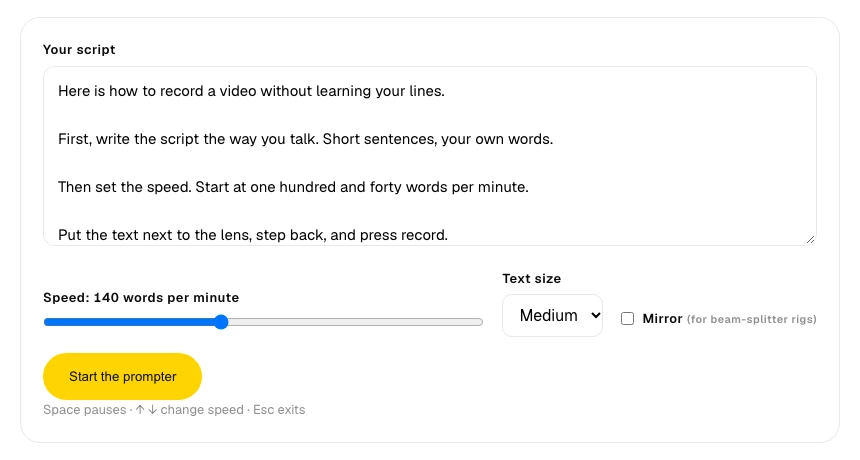
- Paste the script and set the speed with the slider.
- Choose a text size you can read from where you will sit.
- Press start. Space pauses, the arrow keys change the speed, Esc closes it.
- Turn on Mirror only if you use a glass teleprompter rig in front of a camera.
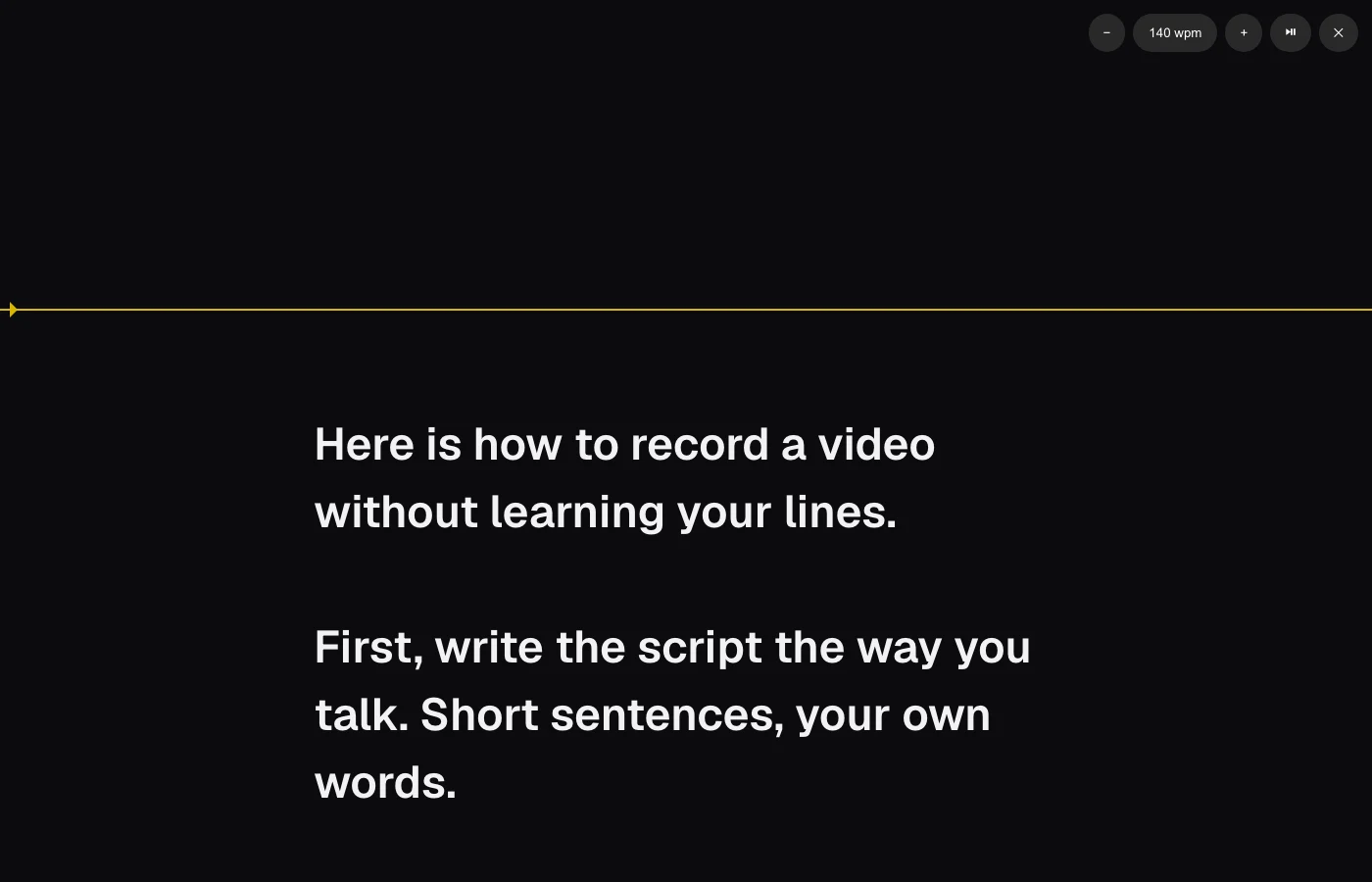
On Zoom, Teams and Google Meet
The same browser teleprompter works for a call or a webinar. Make the window narrow and place it at the top of the screen, directly under the webcam. A narrow column matters more than big text, because short lines keep your eyes from travelling left and right. Then start the call and start the scroll.
What goes wrong, and the fix
| What you notice | The fix |
|---|---|
| You sound like you are reading | Rewrite the script in spoken sentences and add pauses on purpose. |
| You are out of breath | Lower the speed by 10 or 20 words per minute. |
| Your eyes move side to side | Step back, or make the text column narrower. |
| You look below the camera | Move the text closer to the lens. |
| You lose your place | Pause the scroll, breathe, and carry on from the reading line. |
That is the whole method. For the delivery side, read how to read a teleprompter and still sound like yourself. If you have no script yet, start with how to write a video script. In Titro your first video is free, up to three minutes.