Subtitles for interviews with two speakers have a problem that spelling can’t fix. The host asks a question, the guest starts answering before it has quite finished, and the caption on screen reads “So what changed after the first year? Honestly, everything.” Every word is correct. The line still reads wrong, because the viewer can’t tell who said what.
Speaker labels solve it. Titro tells the voices in a video apart, gives each one a name and a colour, and keeps every caption to a single person. Below is how that works, and how to set it up for your next interview, podcast clip or street interview.
Why two voices in one caption read wrong
With one person on screen, captions are a question of timing. With two, the viewer also has to know who is speaking, and with the sound off the subtitles are the only clue. When a question and its answer share a line, or both people appear in the same colour, the viewer has to work it out from the faces. On a phone, in a fast cut, they often can’t.
Broadcast subtitlers handle this with colours or a name in front of the line. Doing it by hand means going through the whole transcript, marking every change of speaker and splitting every caption that crosses one. On a ten-minute interview that is a long, careful job, and it starts again with the next episode.
What Titro does with speaker labels
- Every voice is told apart. When you switch on more than one voice at upload, the speech engine marks each word with the speaker it belongs to.
- No caption mixes two voices. When Titro builds the caption lines, a change of speaker always starts a new caption, the same way a sentence end or a real pause does. A question and its answer never share a line.
- Each speaker gets a colour. It is the highlight on that person’s captions, the colour that marks the word being spoken. The first voice gets Titro’s yellow and the second a cyan; further voices get coral, green, purple and pink.
- Each speaker gets a name. You type it once and every caption from that voice follows.
- The names go into the .srt. When you download the subtitle file, each line starts with the speaker’s name in capitals, the way a broadcast transcript does.
If the engine only hears one voice, nothing changes. There is no speaker list, no names, and the captions look exactly as they would with the setting off.
How to subtitle an interview with two speakers
- 1
Switch on more than one voice
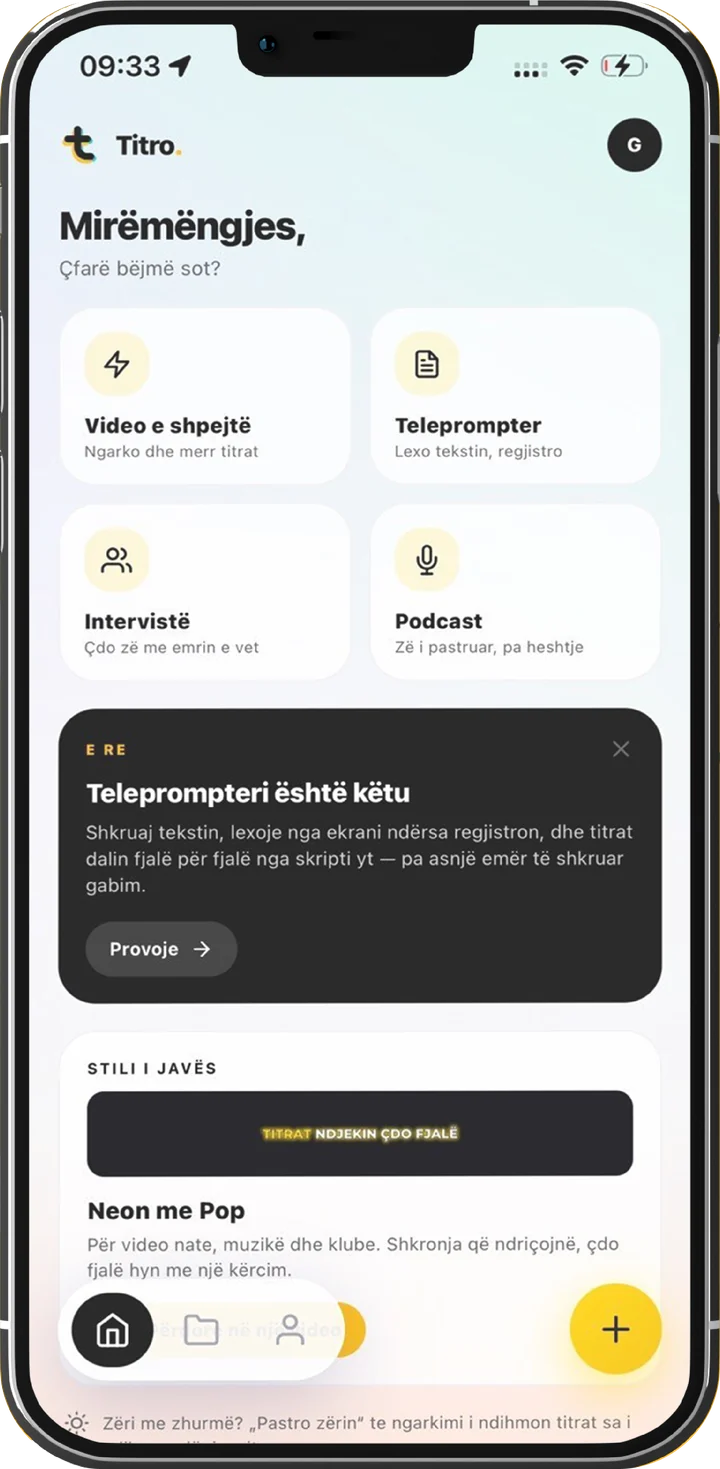
In the app, tap Interview or Podcast on the home screen and the setting is already on. From any other upload, set Who’s speaking to More than one in the upload options. In Titro Studio on the web, tick the speakers box on the upload form.
- 2
Upload and wait
Titro transcribes the video, separates the voices and builds the captions. Each caption belongs to one speaker from the start.
- 3
Name the speakers
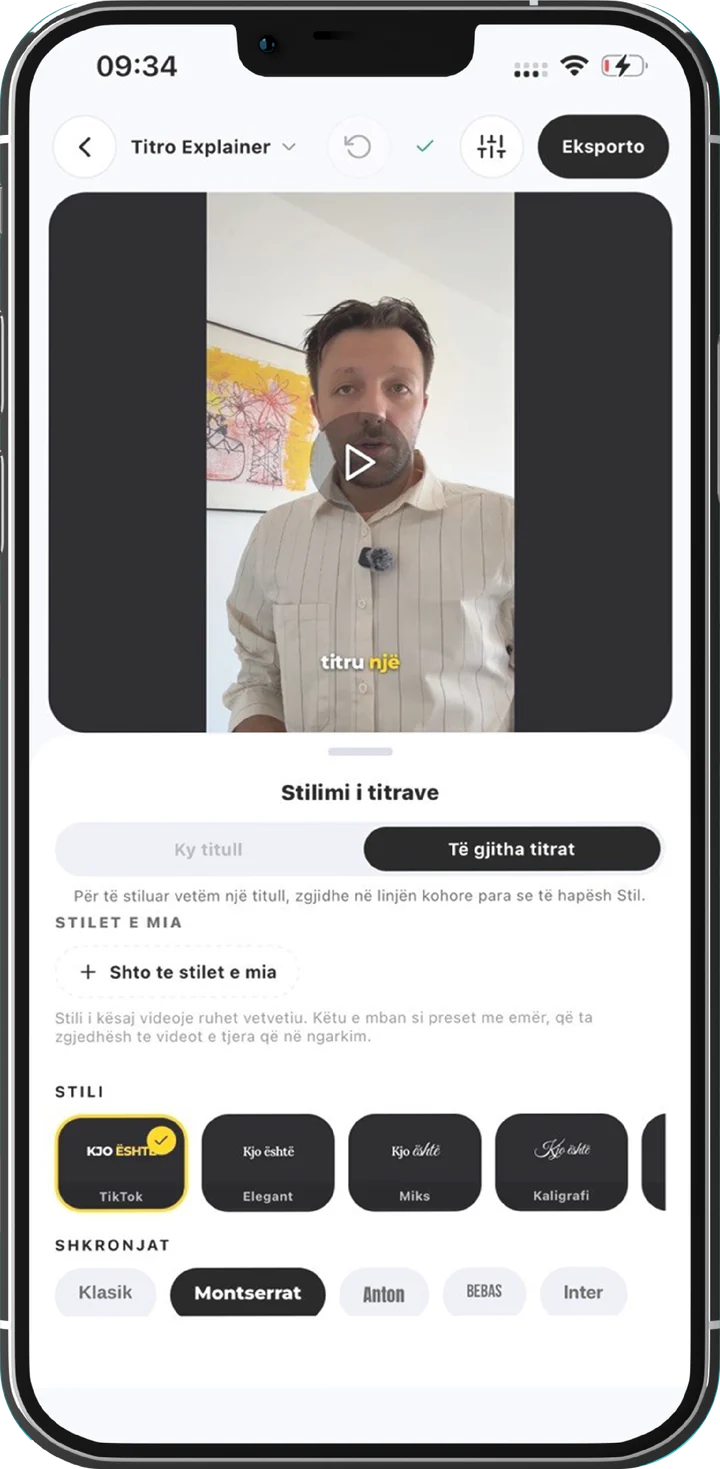
In the app, tap Style. The Speakers list shows one row per voice, with a coloured dot and a name field. Type the real names. In the studio the same list sits in the Style panel, under the highlight colours.
- 4
Change a colour if you like
Tap a speaker’s dot to step through the colours. Every caption from that voice changes with it, in the preview and in the export.
- 5
Export, and keep the .srt
The burned-in video shows each speaker in their colour. In Titro Studio you can also download the .srt with the names in front of every line.
Rename once, and everything follows
Names and colours are kept in one place for the whole project. Titro doesn’t stamp a name onto each caption, so renaming the second voice to “Arta” is a single edit. The rename also holds when you change the caption speed and the lines are rebuilt. The export reads the names and colours at the moment it burns the video, and the .srt reads them when you download it.
Rename before you download the .srt. Until you do, the file carries the default labels in front of each line.
In the app’s timeline, each speaker gets a row of their own with the name on the left. You can see at a glance who talks when, and find the guest’s long answer without scrolling through the host’s questions.
When one caption needs its own look
A speaker’s colour is the starting point for their captions, and any caption can still be restyled by hand. Select one caption on the timeline, switch the styling panel to This caption and give it any colour you want. That caption keeps it while the rest of the speaker’s lines stay as they were.
It works the other way too. With one of Arta’s captions selected, Apply to Arta copies its look to every caption from her voice. Back to project style removes a caption’s own look again.
Good to know
- Leave it on One voice for solo videos. The setting is off by default for a reason: with a single speaker, splitting voices can only add mistakes, and a mistake means one person suddenly appearing in two colours.
- Teleprompter recordings don’t offer the setting. A teleprompter take is one person reading a script, so the speaker choice is hidden there.
- Translation keeps the voices. When you translate the subtitles, each translated line is assigned to the speaker who said it. If a single translated sentence spans both voices, it goes to the person who said most of it.
- The .srt download is in Titro Studio on the web. The app exports the video with the colours burned in.
Interviews are where subtitles most often look wrong with every word right. More on layouts and formats for interview clips is on the interview subtitles page, and the subtitle file itself is covered on the .srt generator page. The quickest test is one of your own clips with two people in it. Your first video is free, up to three minutes.