Speaking pace in words per minute is the simplest number in public speaking, and one of the few that tells you something useful about a take. Too slow and the video drags. Too fast and viewers miss words while the captions rush to keep up. So how fast should you talk on camera?
The short answer is a range. The more useful answer is your own number. Below are the ranges people commonly cite, followed by how Titro measures your pace, pauses and filler words in every video you upload.
How fast should I talk on camera?
There is no official speed, but a few ranges come up again and again in speech coaching. Treat them as general guidance. They vary with the speaker, the language and what you are saying.
| Words per minute | Commonly described as |
|---|---|
| Under 110 | Slow and deliberate. Good for one serious point, heavy going for a whole video. |
| 120–150 | A calm presentation pace. |
| 140–160 | Ordinary conversation. A sensible target for talking to the camera. |
| Above 170 | Fast. Fine in short bursts, tiring to follow for a minute or more. |
Word counts depend on the language too. German has long compound words, so a German speaker can sound just as brisk at a lower count than someone speaking English. Compare your takes with each other more than with anyone else’s.
What the speech report measures
Titro already knows when every word in your video starts and ends, because that timing drives the subtitles. The speech report reads those timestamps back as numbers. It is worked out when you open it, and nothing extra is stored.
- Pace, in words per minute, counted while you are actually talking. Gaps of 1.75 seconds or more are left out, so a deliberate pause never makes you look slow. The number gets a label: Slow under 100, Fast above 165, Ideal in between.
- Fillers: how many hesitation sounds made it into the transcript, such as um, uh, hmm, or the Albanian ëëë. Words people lean on, like “so” or “basically”, are real words and never counted.
- Pauses: how many gaps of 1.75 seconds or more the take has, and how long the longest one was.
- Pace over time: a small bar chart of your pace across the take, from four bars on a short clip up to twelve on a longer one, so you can see where you sped up or slowed down.
Under the numbers you get a tip or two. Above 165 words per minute it suggests slowing down and aiming for 110 to 160. Below 100 it says you can afford to speed up. With three or more fillers it suggests a short pause in their place, and a pause of four seconds or longer points you to the silence cut. A take with none of those gets a short note that the pace was steady.
A video needs at least eight words for a report. Below that there is too little to measure.
Where to find it
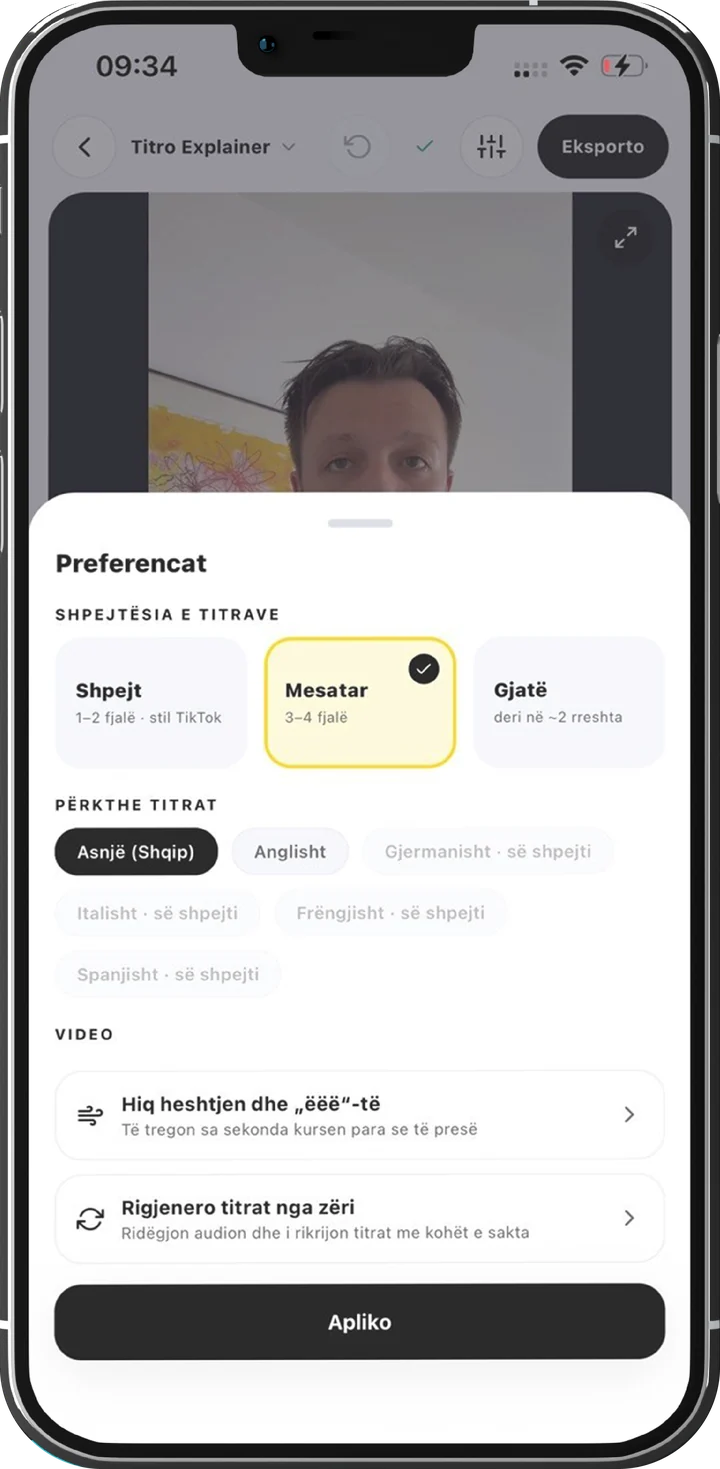
The speech report is in the Titro app for iPhone and Android. Open a video in the editor, tap the sliders button next to Export, and choose Speech report from the list. Titro Studio on the web doesn’t show the report, so open the project on your phone. It is the same account and the same project.
Honest limits on teleprompter takes
On a teleprompter recording, the subtitles still follow what you actually said, and the timing comes from your voice. Pace, pauses and the pace chart are therefore as real as on any other video.
The filler count is different. On teleprompter takes the report doesn’t count fillers, and it shows a dash where the number would be. A dash is honest; a zero would claim a clean take that was never checked.
The teleprompter’s scroll speed and your measured pace can also differ. The scroll is what you set before recording; the report is what your voice did. If you set the prompter to 150 and the report says 125, the report is the pace your viewers will hear.
Pace and your subtitles
Pace matters twice when a video has subtitles. With the sound off, the captions carry the whole message, and every new caption is something the viewer has to read before it changes again. The faster you talk, the faster they change.
If the report puts you well above 165, a shorter caption setting helps. Under Caption speed in the same Preferences sheet, Fast shows one or two words at a time, Medium three or four, and Long up to about two lines. Shorter captions are easier to follow at speed, and Titro rebuilds the lines from the same word timings, so nothing needs retiming by hand.
How to use it to get better
- 1
Record the way you normally would
No need to perform for the report. One ordinary take gives you a baseline.
- 2
Open the report
Look at the pace first, then at the chart. Bars that climb towards the end often mean the close was rushed.
- 3
Fix one thing
Pick the biggest issue: pace, fillers or long pauses. Working on all three at once tends to make a take stiff.
- 4
Record again and compare
Your second take’s numbers next to your first tell you more than any general range.
- 5
Cut what’s left
Long pauses and filler sounds that remain can come out with Remove silence and filler words, in the same Preferences list. The captions are re-timed for you.
If you read from a script, the teleprompter guide covers pace from the other side: setting the scroll so it follows your voice. The report then tells you how it went. Your first video is free, up to three minutes.