Step by step
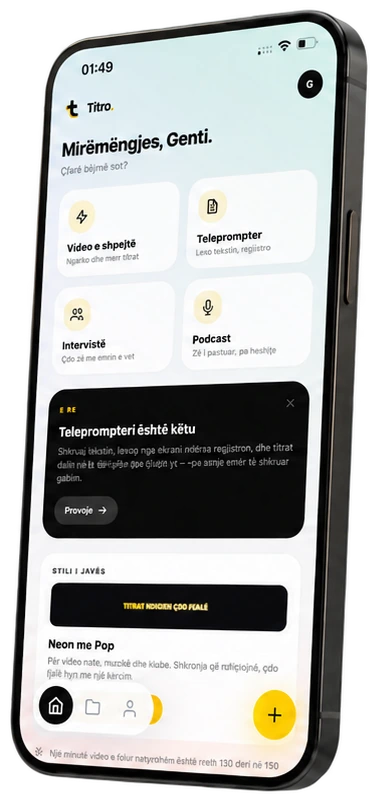
Open Video
In the editor tap Edit, then the Video tile.
Remove the silence
Tap Remove silence, then Cut the video. The pauses come out and the captions are retimed automatically.
Filler words
In the same place you can remove the filler words from the captions only, leaving the video as it is.
Changed your mind?
Restore the original video brings back every cut.
Open Video
Click Video in the left rail.
Remove silence and filler words
In the card for silence and filler words, choose Cut the video or remove the fillers from the captions only.
Undo it
Restore the original video brings the uncut version back.
Get more out of it
Then read the speech report
Speech report shows your pace, your filler words and your longest pauses. Around 110–160 words per minute is comfortable to follow.
Cut after you edit the words
Fix the wording first, then cut the pauses, so you review the final rhythm only once.
Keep pauses that matter
If a pause is part of the joke, restore the original and keep that video uncut.
Good to know
- Pauses of 0.6 seconds or longer are cut, with a short margin so words don't clip.
- Restoring the original is always possible.
Keep going
Clean up the audio
Reduce wind, traffic and hum while Titro captions your video, and set the loudness for social media, podcasts or broadcast.
Record with the teleprompter
Read your script on the phone while you film, set the reading speed, and get captions of what you said, spelled the way your script spells it.
Fix words, timing and layout
Correct a word, move a caption in time, split long lines, add free text and images: editing captions in the Titro app and in Titro Studio.