Most people watch Reels with the sound off, at least for the first seconds. A Reel without subtitles loses that viewer before the hook lands. So the question is rarely whether to add subtitles, and almost always how.
Way 1: Instagram’s Captions sticker
When you edit a Reel in Instagram, the Captions sticker writes the speech out for you and lays it over the video. It is free and it takes a few taps, so for a quick Reel it is a fair choice.
The catch is that the text lives inside Instagram. Download the Reel, send it on WhatsApp or post it to TikTok, and the subtitles do not come with it. The look is also limited to the styles the sticker offers, and you correct mistakes one line at a time.
Way 2: type them in a video editor
An editor gives you full control over the look. It also gives you the slowest job in video: typing every word, cutting the text into short lines and setting where each line starts and ends. For a one-minute Reel that is easily half an hour, and you do it again for the next Reel.
Way 3: automatic, burned-in subtitles
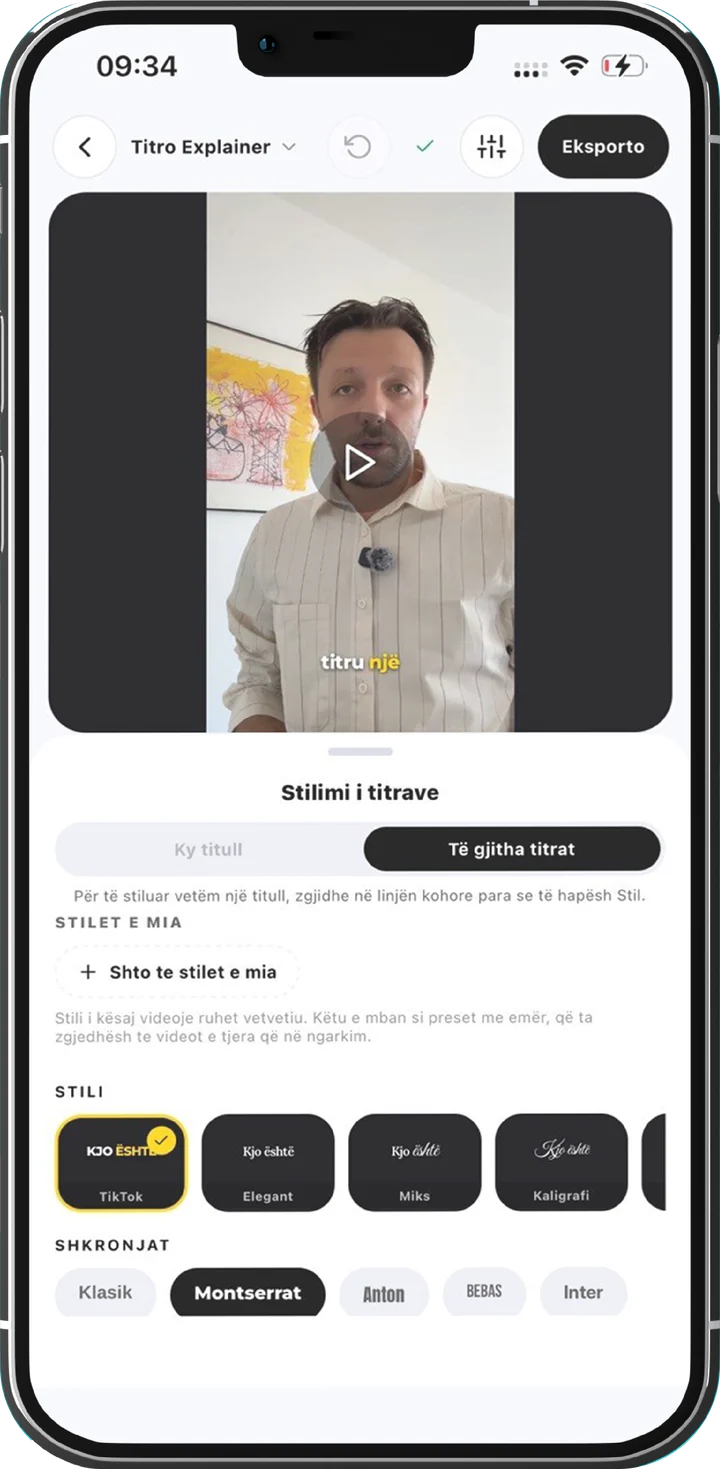
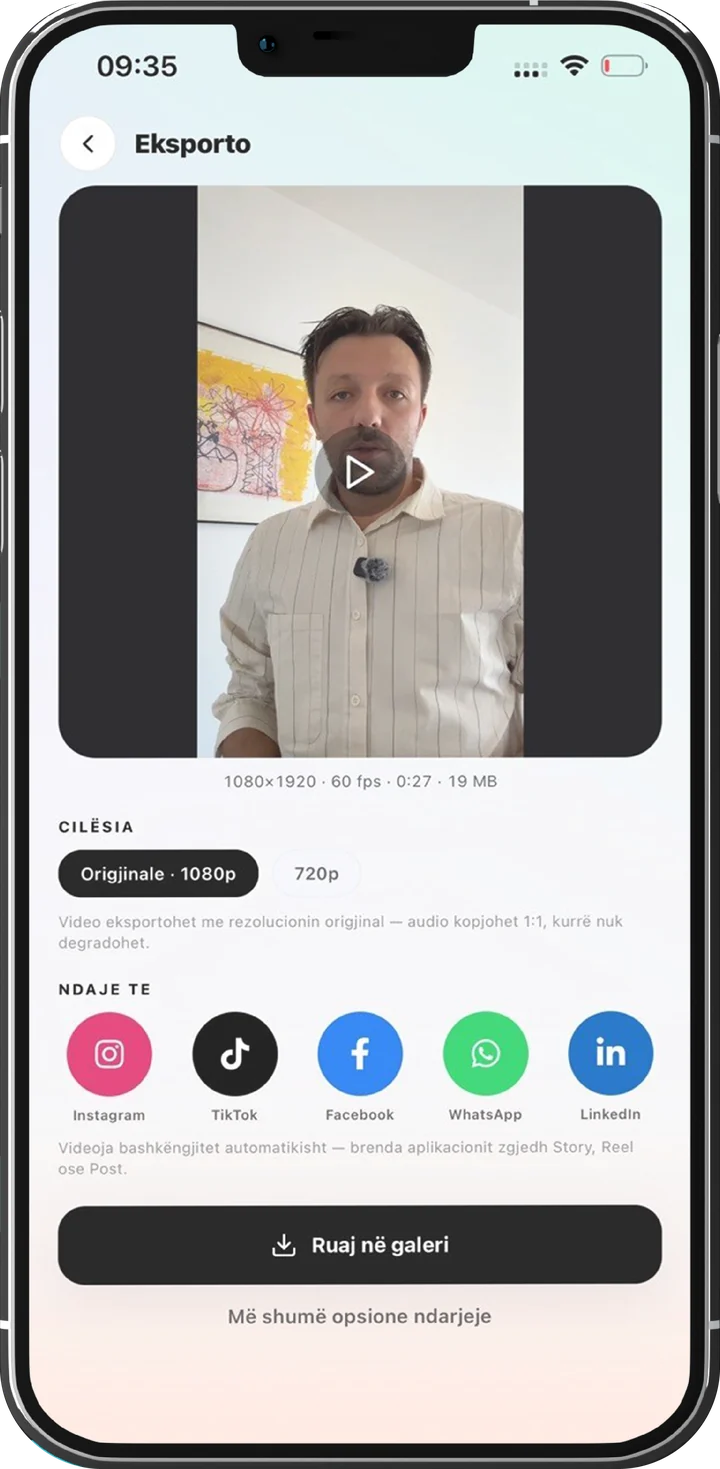
An app like Titro listens to the video, writes down every word with its own timing and puts the subtitles into the picture itself. You upload the Reel, wait around twenty seconds for a short clip, check the text and export. The result is a normal 9:16 video with the subtitles inside, so it looks the same on Instagram, TikTok, Shorts and in a WhatsApp chat.
| Captions sticker | Editor, by hand | Automatic, burned in | |
|---|---|---|---|
| Time for a one-minute Reel | A few minutes | About half an hour | About twenty seconds, plus a quick check |
| Look | A few fixed styles | Anything you build | Eight styles, your own font, colour and position |
| After a download or repost | Subtitles are gone | Kept, if you export them in | Kept, they are part of the video |
| Fixing a wrong word | Line by line in Instagram | Retype it | Tap the word and change it |
How to do it with Titro, step by step
- 1
Upload the Reel
From your gallery, or from Titro Studio on the web. Choose how many words show at once: Fast is one or two, Medium three or four, Long up to about two lines. Leave the language on Auto, or pick it yourself.
- 2
Wait
A short clip is usually back in about twenty seconds. You can close the app while it works, and Titro sends a notification when the video is ready.
- 3
Check and style
Tap a word to fix it, drag the caption where you want it, and pick one of the eight styles. Save the style, so the next Reel starts with it.
- 4
Export and post
Save it to your phone or share it straight to Instagram. The video keeps its original resolution and the audio is untouched.
Where the subtitles should sit
Instagram covers the lower part of a Reel with the username, the caption text and the audio line, and the top with icons. Subtitles read best in the lower middle band, above that. Titro’s styles already sit there, and you can drag any caption higher if you also post the clip as a Story.
Which one to pick
- A quick Reel that only ever lives on Instagram: the Captions sticker is enough.
- A single hero video where every frame is designed: an editor, if you have the time.
- Reels every week, or the same clip on more than one platform: automatic, burned-in subtitles. The saving adds up with every video.
More on this, with the sizes and safe zones, on the Instagram Reels captions page. Your first video is free, so the quickest test is to try it on a Reel you already have.